FlashBack Free – Free Screen Recorder with No Watermark
Introduction
The first time I heard about FlashBack, I was actually quite surprised – not because of how powerful it is, but because the way its free version works is completely different from most screen recorders.
When I used to look for free recording tools, I almost always ran into two problems: either they limited recording time (stopping after ten minutes), or the exported video came with a huge watermark that made it look like a trial version. If I only needed to record a short clip, that was fine – but for a full lecture or a meeting, those restrictions were incredibly annoying.
Then someone mentioned FlashBack, saying that its free version had no time limits and no watermark. Honestly, I didn't believe it at first. A free recorder without watermarks and no time limits? That sounded too good to be true. It wasn't until I downloaded and tried it myself that I realised it was actually true.
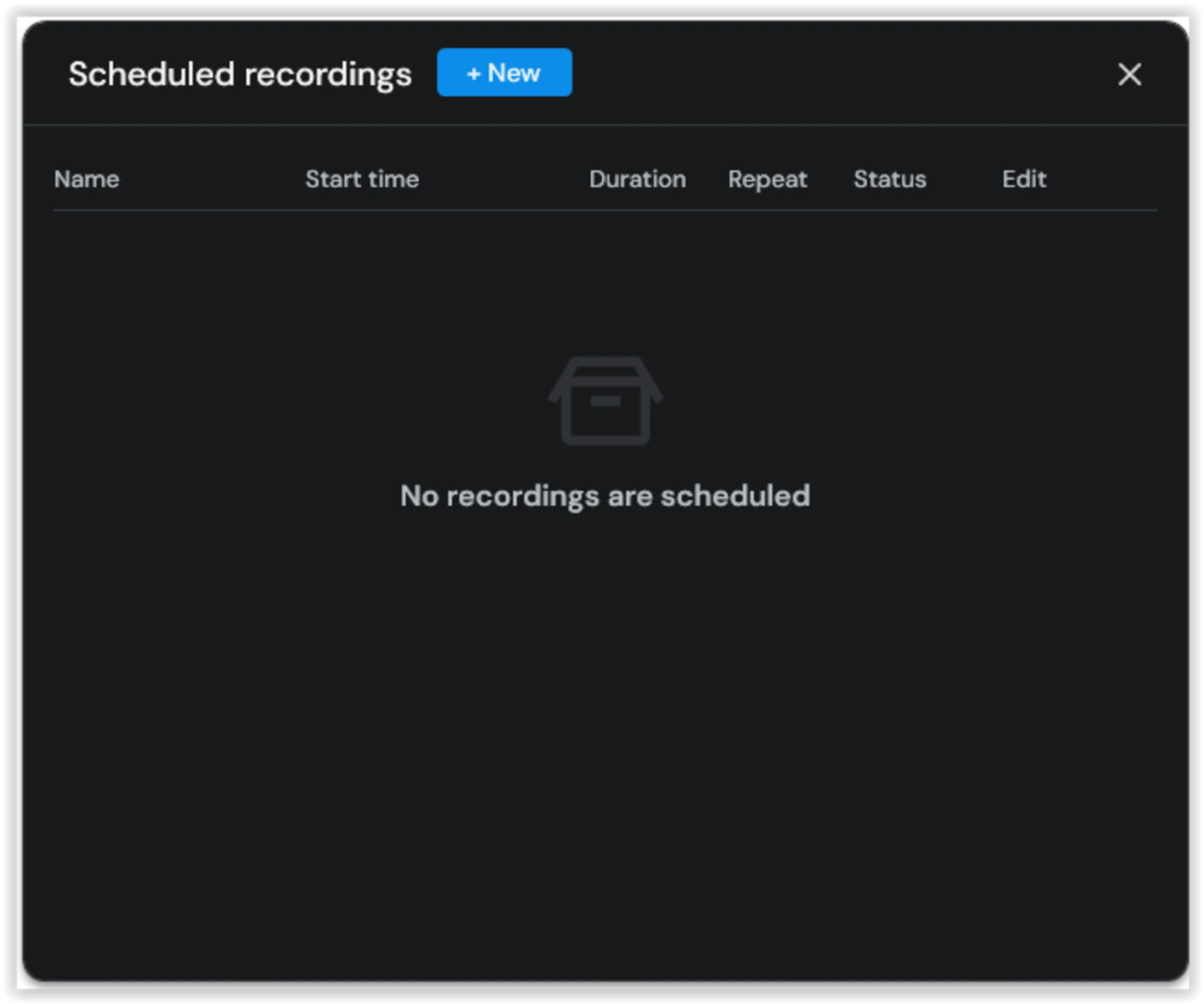
Why I Recommend It
FlashBack doesn't try to do everything – it just does the basics really well. It supports recording the full screen, a specific window, or a custom region. You can also record microphone audio, system sound, and webcam footage at the same time.
The free version doesn't add any watermarks to exported videos, and there's no significant recording time limit. For most everyday recording needs – whether it's a lecture, a meeting, or a software demo – that's more than enough.
I later learned that this software is made by a UK‑based company called Blueberry Software, which has been making screen recorders since 2003. They also offer a professional version called FlashBack Pro, while the free version has some features trimmed but keeps the core recording capabilities intact. The free version supports MP4 and AVI exports, and also offers direct upload to YouTube.
Of course, the free version does have some limitations – for example, certain advanced editing features are only available in the paid version. But for users who just need to record their screen without heavy post‑processing, those limitations don't really get in the way.
A Few Things I Like
No watermark, no time limits. This is the biggest draw for me. Many free recorders add watermarks or cap recording time, but FlashBack's free version doesn't. You can record as long as you like, and the exported videos are clean – ready to use without extra processing.
Very easy to get started – no configuration required. Once you open the software, the interface is straightforward. You don't need to set up scenes and sources like you would with OBS. Just choose your recording area, set up audio, and hit record – it's basically three steps. For anyone who just wants to capture their screen quickly, this is a hassle‑free experience.
Record screen, webcam, and audio simultaneously. When making tutorials or demos, you can record the screen, webcam, and microphone at the same time. The webcam feed appears as a picture‑in‑picture overlay on the screen, and you can adjust its position. It's not a flashy feature, but for walkthroughs where you need to talk and demonstrate, it's genuinely useful.
Built‑in basic editing. After recording, you can trim the video directly within the software – cut off the beginning and end, or remove any mistakes in the middle. That saves you from opening another editing tool for simple fixes.
Low resource usage. It runs smoothly on standard office computers without noticeable lag during recording. For lower‑spec machines, this is much more friendly than many other recorders.
Quick Start Guide
FlashBack Express is a completely free screen recorder with no recording time limits and no watermarks. You can download it from the official website: https://www.flashbackrecorder.com/express/. Make sure you choose the "Express" version, not the "Pro" version. Follow the on‑screen instructions during installation, but keep one detail in mind: near the end of the installation, there will be a small link that lets you continue using the free version – click that link to avoid accidentally selecting the paid version.
Starting a Recording
Once installed, open FlashBack Express and the recording window will appear automatically. The interface is intuitive and doesn't require complex setup.
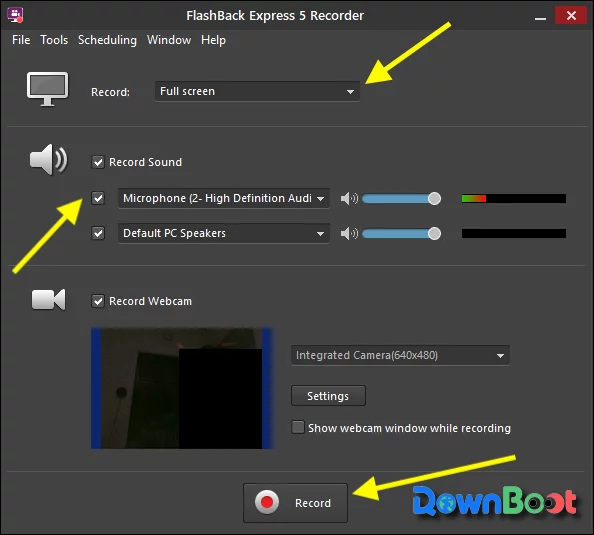
Before recording, confirm a few settings:
- In the dropdown menu at the top, set the recording range to "Full Screen", or change it to "Window" or "Custom Region" as needed.
- Check "Record Sound" and make sure both "Microphone" and "Speakers" (or system audio) are selected. Say a few words to test – the level indicator on the right should move with your voice. If it doesn't, check if your microphone is working properly.
- If you want to show your face, check "Record Webcam" and select your camera device.
Once everything is set, click the "Record" button. It's a good idea to do a 5‑10 second test recording first to confirm that both video and audio are working fine before starting the actual recording. After you finish, click stop – the system will ask whether you want to "Review", "Save", or "Discard" the recording – select "Review" to proceed to the next step.
Exporting the Video
After reviewing your recording, the next step is to export it to a usable video format.
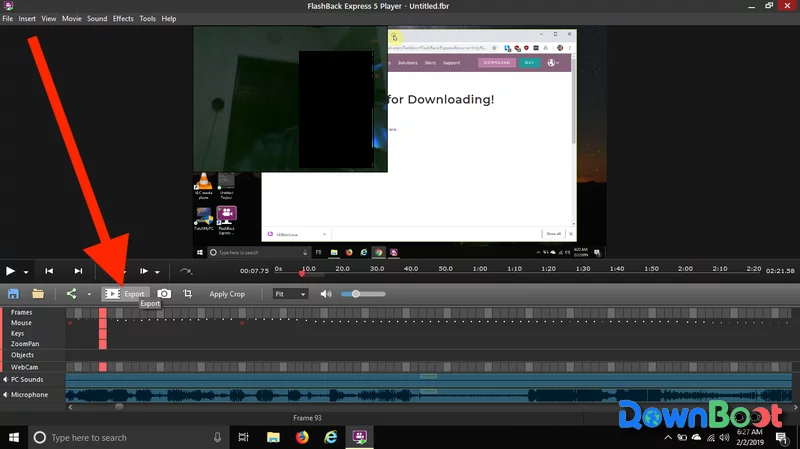
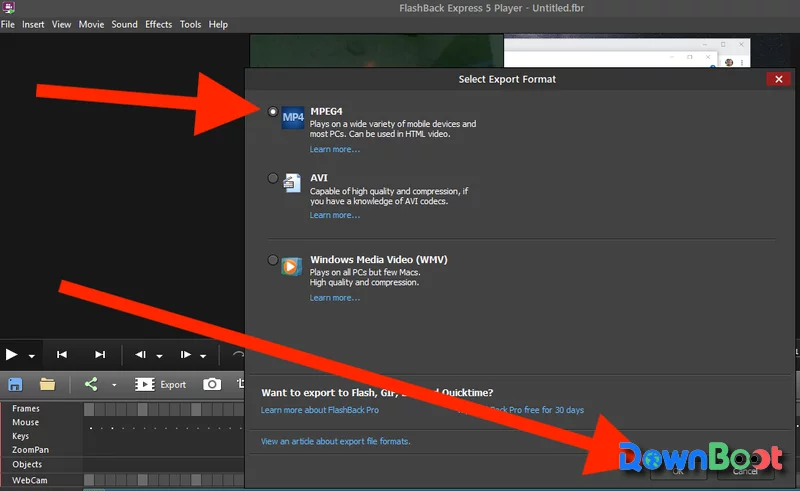
Click the "Export" button on the interface. In the "Select Export Format" window that appears, choose MP4 or MPEG4, then click "OK".
You will then see the "Export as MPEG4" settings screen. Make sure "Export Frame" is set to "Whole Movie" and keep all other options at their defaults, then click "Export" to start the process.
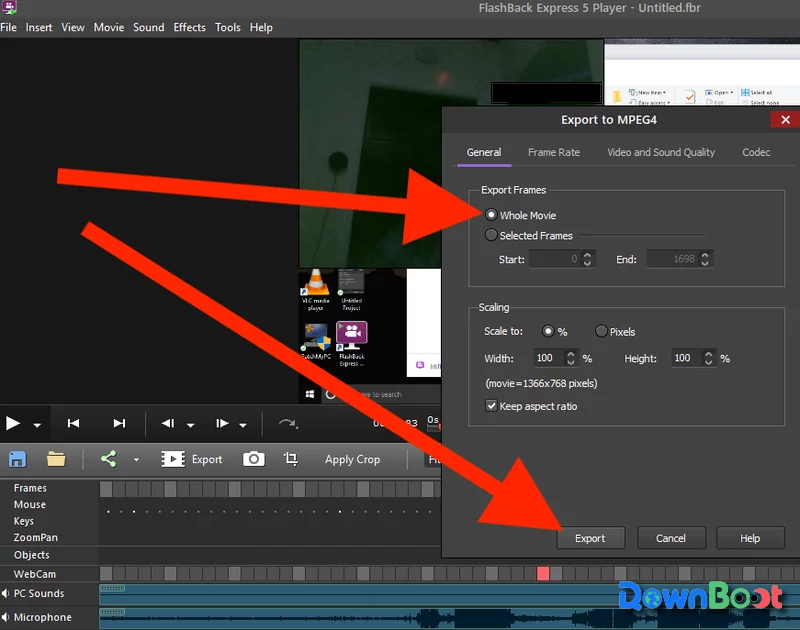
The export time will be roughly three‑quarters of the actual recording length, so please be patient. Once the export is complete, you will have two files: one is the MPEG4 video file (this is the finished product you can upload, share, or publish), and the other is the project file with a film camera icon (this is the FlashBack project source file – keep it safe, but do not upload it anywhere else).
Finally, upload the MPEG4 video file to where you need it (such as Kaltura or other video platforms).
What Could Be Better
FlashBack currently only supports Windows – macOS and Linux users are out of luck. Also, the free version's editing capabilities are quite basic; if you need to do more complex post‑production like adding captions, transitions, or multi‑track editing, you'll still need to use other video editing software.
In addition, the interface is primarily in English – while the software itself is easy enough to navigate, first‑time users who aren't comfortable with English might need a little time to get oriented.
Also, although the free version has no watermark on the main recording, certain features – like cursor highlighting or webcam background replacement – may include a watermark in the free version when exported. However, most users won't need those features often, and they don't affect everyday recording scenarios.
Pricing and Free Usage License
FlashBack comes in both a free version and a paid version:
Free version (FlashBack Express): Free to use, no recording time limits, and no watermark on exported videos. Supports screen recording, webcam recording, audio capture, and basic video trimming. Suitable for everyday recording, tutorials, meetings, and more.
Paid version (FlashBack Pro): Offers more advanced editing features, including animations, transitions, captions, zoom effects, background music, and more. Supports multi‑track recording with separate tracks for screen, webcam, and audio. It is available as a one‑time purchase – please check the official website for the latest pricing.
For most everyday recording needs, the free version is already enough. But if you need to produce more polished tutorials or presentations, the Pro version provides a more complete editing toolkit.
Supported Platforms / Languages
FlashBack supports Windows 10 and Windows 11. The interface is currently primarily in English, though the software is straightforward enough to use without relying heavily on language.
Who Is It For
- Beginners who are new to screen recording – no complex setup required, just open and record
- Teachers and online course creators – recording lessons with simultaneous screen and webcam capture
- People who need to record meetings or training sessions – no time limits, so you can capture the entire event
- Software tutorial creators – quickly record walkthroughs without extra configuration
- Users who want a free, watermark‑free recorder – who don't want to pay but still need clean output
Alternatives
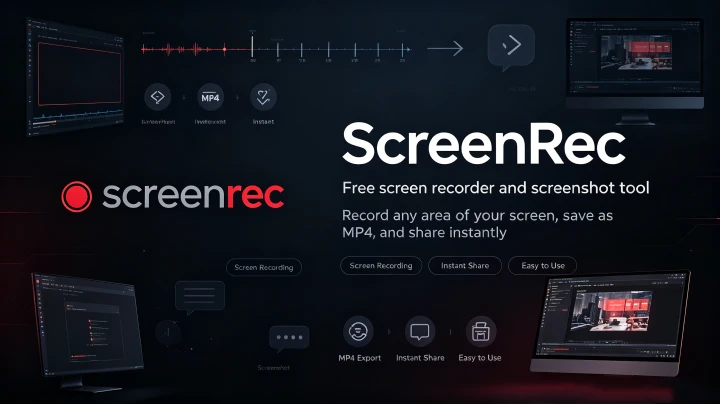
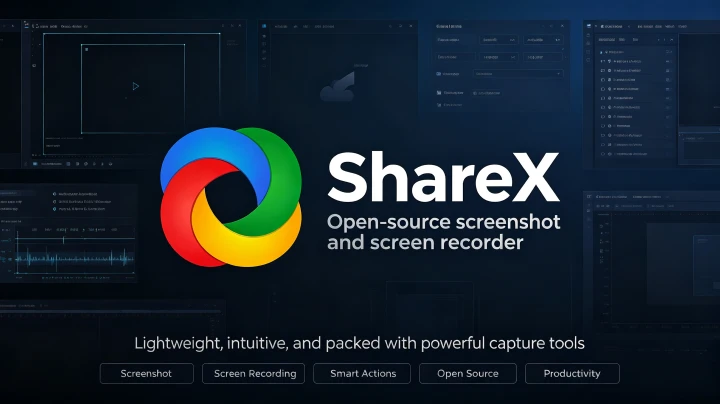
If FlashBack interests you, these are also worth checking out: OBS Studio – completely free and open‑source, powerful for streaming and complex recording, but with a steeper learning curve; ShareX – open‑source and free, with strong screenshot and recording capabilities, but a more complex interface; ScreenRec – a lightweight recorder focused on quick sharing, with automatic link generation; Xbox Game Bar – built into Windows, no installation required, good for quick game clips.
Final Thoughts
FlashBack isn't the most feature‑packed recorder out there, but it strikes a good balance between ease of use and practicality. The free version has no watermarks, no complicated workflow, and is perfectly adequate for recording lessons, meetings, software demos, or everyday tutorials. If you don't need live streaming, multi‑scene switching, or professional video production, it's a solid, hassle‑free choice.