ApowerREC – Easy Screen Recorder for Windows, Mac, Android and iPhone
Introduction
I first tried ApowerREC for a pretty simple reason – I needed to record a tutorial video, but I really didn't feel like opening OBS. OBS is powerful, sure, but every time I use it I have to rethink how to set up scenes and sources – even for a few minutes of recording, I end up spending ages on configuration. Then I came across ApowerREC. Downloaded it, installed it, opened it, selected a region, hit record – and that was it. To be honest, the first time I used it, I was a bit sceptical – is it really this simple? Am I missing something?
I later realised that yes, it really is that simple. And for most recording needs, simplicity itself is a big advantage.
Why I Recommend It
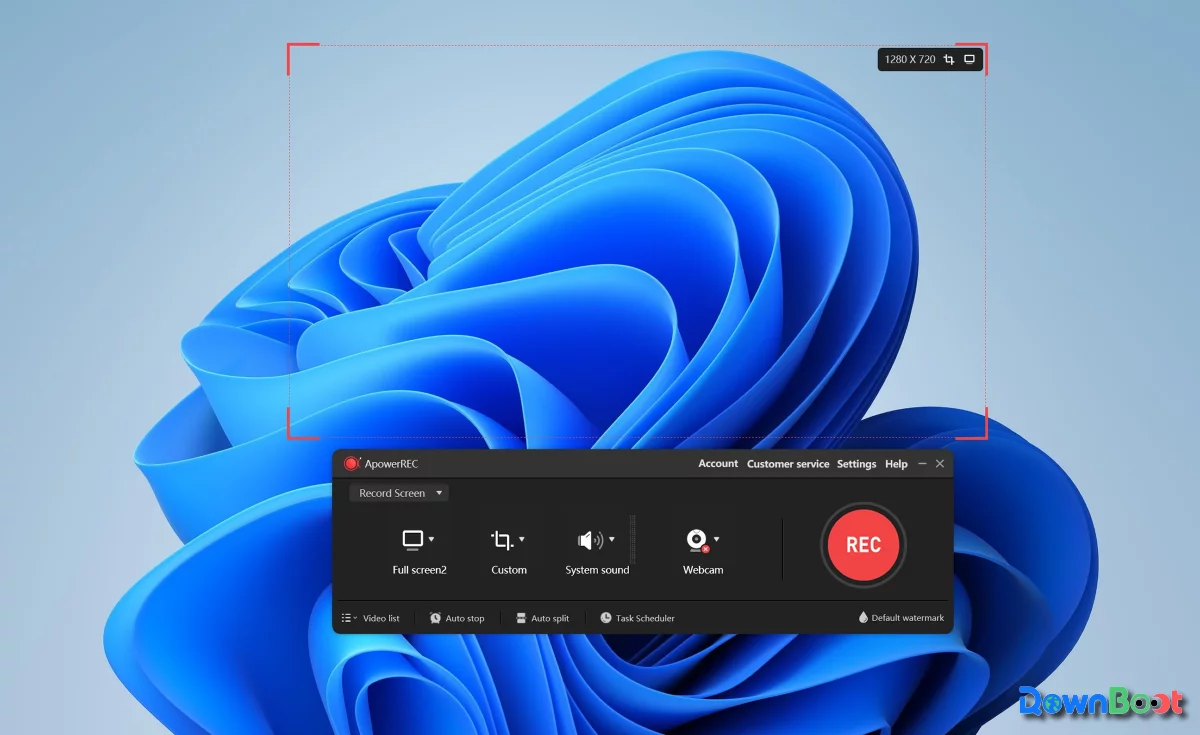
Many screen recorders fall into one of two extremes. Some are packed with features, like OBS – beginners open them and have no idea where to start. Others are simple but lack many practical functions – like picture‑in‑picture, scheduled recording, or real‑time annotation. ApowerREC sits in the middle: plenty of features, but not hard to use. When you open it, you don't need to study encoding settings or configure complex scenes. Just pick a recording area, hit start, and you're good to go.
If you just want to record a tutorial, a meeting, or some gameplay, and you want to start recording right away, ApowerREC is definitely easier to pick up.
A Few Things I Like
Flexible recording area selection. Full screen, a specific window, or a custom region – you can record whatever you want. And when you're selecting the area, the software shows the current resolution, so you can control the output quality. That's a small but handy detail.
Picture‑in‑picture works naturally. The webcam feed can be overlaid directly onto the screen recording, and you can adjust its position and size. For tutorials or presentations, you can record it all in one go without post‑processing. For anyone who needs to show both the operation and the presenter, this feature saves a lot of time.
Scheduled recording – no need to babysit the computer. This isn't something you'd use every day, but when you need it, it's really convenient. For example, if you want to record a live course in the evening, or capture a meeting at a set time – just set it up and let the software run on its own.
Real‑time annotation is very handy. Sometimes during recording, you suddenly want to circle a key point or draw an arrow to draw attention to a button – the draw‑while‑recording feature lets you mark things up on the fly, without needing to add them later. It's not a particularly advanced feature, but for tutorial creation it makes the process much smoother.
Cross‑platform – you can record on mobile too. ApowerREC isn't just for Windows and macOS – it also has Android and iPhone versions. If you need to record a mobile demo or gameplay on your phone, you can use the same tool without having to find another app.
What Could Be Better
The biggest downside is the limitation of the free version.
ApowerREC uses a freemium model – the free version works, but with restrictions. For example, recording length is limited, exported videos come with a watermark, and some advanced features require a paid subscription. If you only record occasionally, the free version might be acceptable. But if you need to record regularly, or if you need watermark‑free videos, a subscription is pretty much unavoidable.
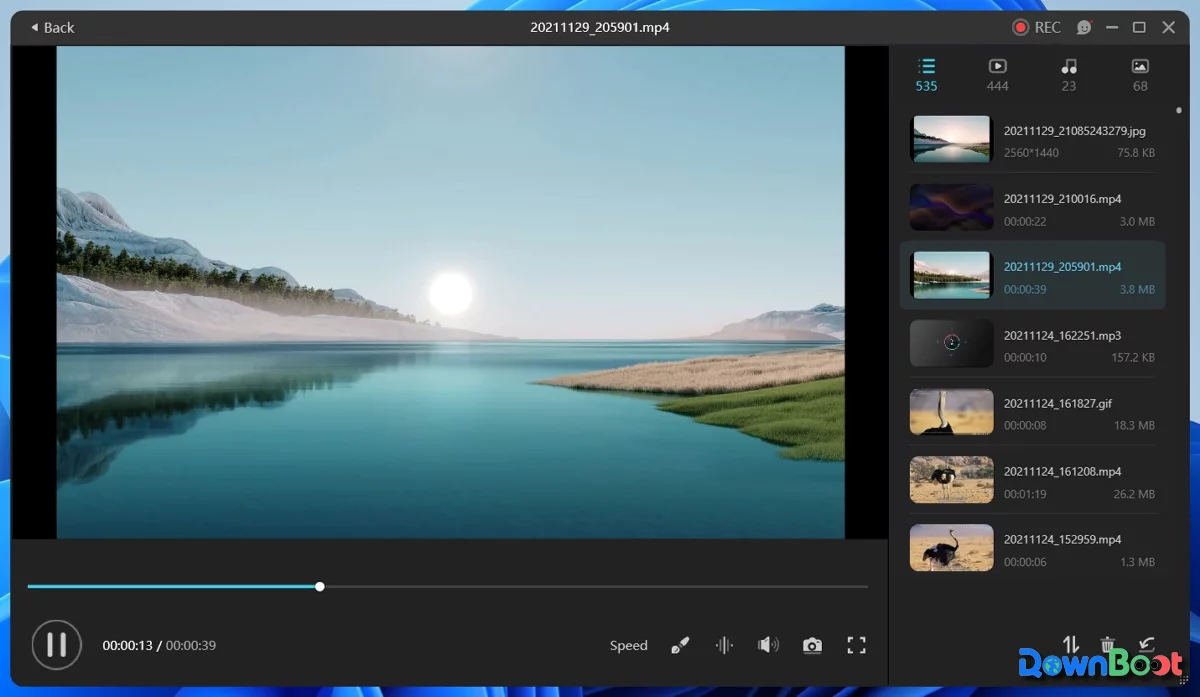
Also, while it does offer basic video editing, it's only good for simple trimming and cutting. For complex editing – like multi‑track, effects, colour grading – you'll still need to use CapCut, DaVinci Resolve, or other professional tools.
Pricing and Free Usage License
ApowerREC follows a freemium model, offering both a free version and a paid version:
Free version: You can use basic recording features for free, but recording time is limited, and exported videos will carry an ApowerREC watermark. Suitable for occasional users who don't need high‑quality output.
Paid version: Removes recording time limits, removes the watermark, and unlocks all advanced features (such as picture‑in‑picture, real‑time annotation, scheduled recording, etc.). It's available via annual subscription – please check the official website for the latest pricing.
My personal take: if you need to record every week, or if your videos are for formal use, the paid version is much more hassle‑free.
Supported Platforms / Languages
ApowerREC supports Windows, macOS, Android, and iPhone (iOS), with good cross‑platform coverage. The interface supports multiple languages, including Simplified Chinese, Traditional Chinese, English, Japanese, Korean, German, French, Spanish, Portuguese, and more – you can switch in the settings.
Who Is It For
- First‑time screen recorder users – who don't want to learn complex settings and just want to start recording
- Teachers recording online courses – picture‑in‑picture and real‑time annotation are very useful
- People who need to regularly record meetings or training sessions – scheduled recording automates the process
- Business presenters – quickly record demos without needing post‑production
- Users who need to record on both desktop and mobile – cross‑platform support means no need to switch tools
Alternatives
If you're interested in ApowerREC, these are also worth checking out: OBS Studio – completely free and open‑source, powerful for streaming and complex recording, but with a steeper learning curve; Bandicam – a lightweight recorder with good game recording optimisation, but the free version includes a watermark; ScreenPal – a recorder similar in positioning to ApowerREC, also supporting multiple platforms; Xbox Game Bar – built into Windows, no installation required, good for quick game clips; ShareX – free and open‑source, with strong screenshot and recording features, but a more complex interface.
Final Thoughts
Looking back, I think ApowerREC's biggest strength is that you don't need to learn anything. It doesn't require configuring scenes and sources like OBS, nor does it oversimplify like some lightweight tools. It strikes a good balance between ease of use and feature richness. If you need to record lessons, meetings, or demos, but don't want to spend time wrestling with complex setups, ApowerREC is worth a try. That said, if you plan to use it long‑term, it's a good idea to check whether the free version's limitations work for you.