Xbox Game Bar – Built-in Free Screen Recorder for Windows 10 and 11
Introduction
When most people look for a screen recorder, their first instinct is to download OBS, Bandicam, or some other third‑party tool. I used to do the same. I'd install a bunch of software, only to find that most of the time I just needed to record a quick tutorial or a short gameplay clip. Then I realised that if you're on Windows 10 or Windows 11, the system actually comes with a built‑in recorder – Xbox Game Bar. Just press Win + G and it pops up. No download, no installation, no registration – not even a restart required.
The first time I used it, I was quite surprised. I wasn't expecting much, but it turned out to work just fine. Sure, it's not packed with features, but for recording a tutorial, capturing a game clip, or taking a screenshot – it's more than enough. For everyday recording, it might already be all you need.
Why I Recommend It
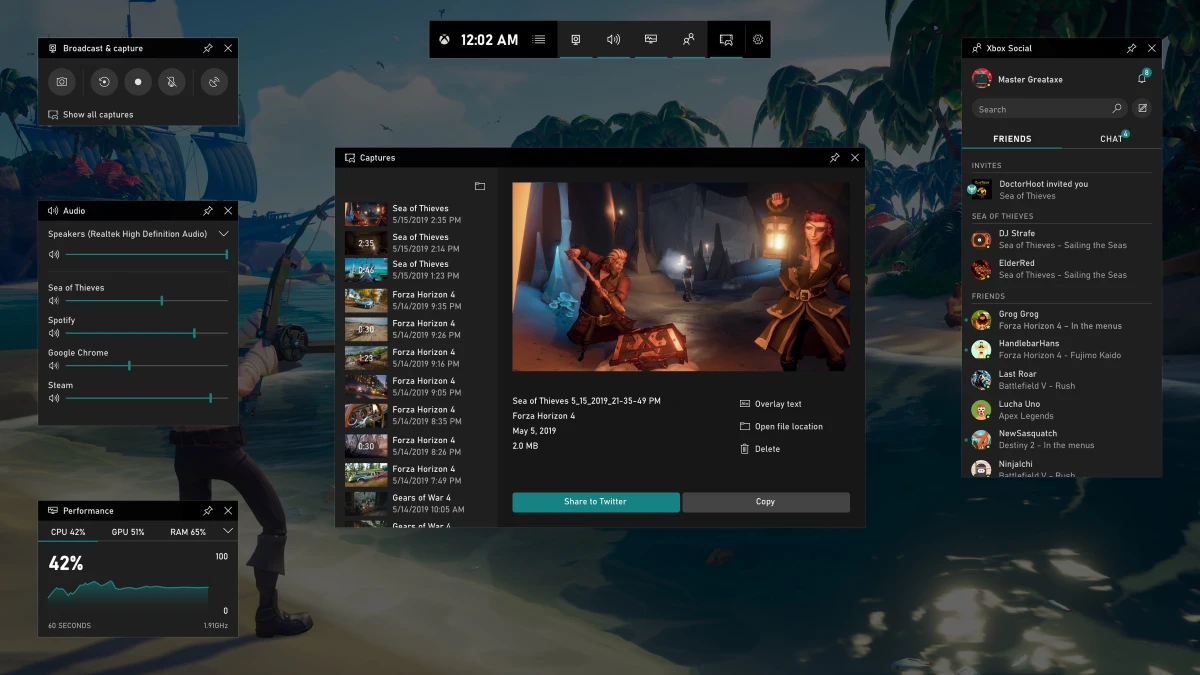
Xbox Game Bar's biggest advantage has never been about how powerful it is – it's that you don't need to install anything. If you're on Windows 10 or Windows 11, it's already there. Just hit the shortcut and you're good to go. No account sign‑up, no complicated encoding settings to fiddle with, no scenes or sources to configure. For someone who only records occasionally, that "out‑of‑the‑box" experience matters more than anything else.
Its positioning is actually quite clear – it's not for professional content creators, but for everyday users who need a "good enough" recording solution. If you just need to capture a software walkthrough, record an online meeting, or save a game highlight, it handles the job just fine.
A Few Things I Like
Win + G, that's it. You don't need to dig through the Start menu or memorise complex command lines. Whenever you want to record, just press Win + G and the overlay appears. Hit the record button and you're off. The whole process takes less than ten seconds.
Record a specific window, not the entire desktop. This is a small but practical detail. Xbox Game Bar only records the currently selected window or game by default – it doesn't capture the desktop, notifications, or taskbar. If you want to record a software walkthrough, you can jump right in without worrying about other things on your screen being recorded.
Very low performance impact. I've tried recording while playing games with modest system requirements, and the frame rate barely dropped. Microsoft designed this tool primarily for game recording, so resource usage is well controlled. For most users, this "record like nothing's happening" experience is actually better than many third‑party solutions.
Background recording is surprisingly useful. If you're in the middle of a game and something awesome just happened, but you didn't start recording in time – Xbox Game Bar's background recording feature lets you "record retroactively". By default, it saves the last 30 seconds of gameplay, and you can adjust this in the settings. It's not as flexible as professional recorders that support longer replays, but for the occasional highlight capture, it's more than sufficient.
The performance overlay is straightforward. While recording, you can pull up the performance monitor to check CPU, GPU, and memory usage. The data isn't extremely detailed, but it gives you enough insight to tell whether your system is struggling or if you need to lower your graphics settings.
What Could Be Better
The feature set is undeniably basic. Recording the entire Windows desktop isn't supported at the moment. There's no multi‑scene switching, no live streaming, no plugin ecosystem, and certainly no advanced encoding options. Output formats are limited to standard MP4 files, with very little customisation. If you need more professional recording or editing capabilities, Xbox Game Bar will quickly fall short.
Also, on certain versions of Windows, Xbox Game Bar restricts desktop recording – it's more geared toward recording application windows and games rather than the entire desktop. That's something to keep in mind. If you're planning to use it for full desktop capture, it's worth checking whether your version of Windows supports it.
Free Usage License
Xbox Game Bar is completely free – it's a built‑in part of Windows. No payment, no subscription, and no feature restrictions – everything is available to everyone.
Supported Platforms / Languages
Xbox Game Bar supports Windows 10 and Windows 11. It follows the system language and supports all Windows languages – including English, Simplified Chinese, Traditional Chinese, Japanese, Korean, German, French, Spanish, and more. You can switch it via the system settings.
Who Is It For
- Casual users who record occasionally – who just want to capture their screen quickly without messing with complicated software
- Windows 10 / 11 users – it's built in, no extra installation required
- Gamers – for recording gameplay clips, highlights, and walkthroughs
- People who need to record software tutorials – quick walkthroughs, step‑by‑step demos
- Anyone who doesn't want to install third‑party recording tools – who prefer to keep their system clean
Alternatives
If you need a more professional recording tool, these are also worth checking out: OBS Studio – completely free and open‑source, feature‑rich, great for streaming and complex recording scenarios, but with a steeper learning curve; ShareX – open‑source screenshot and recording tool, lightweight and good for quick captures; Bandicam – lightweight recorder with strong game recording optimisation, but the free version includes a watermark; and Camtasia – a commercial suite that combines screen recording and video editing, suitable for users who need an all‑in‑one workflow.
Final Thoughts
Xbox Game Bar is more like a Swiss Army knife that ships with Windows. It's not as professional as OBS Studio, nor does it offer as many recording options as Bandicam. But for most everyday recording needs, it's simple enough and convenient enough. If you only need to record a game, a tutorial, or an online meeting every now and then – and you don't want to install extra software or spend time learning complex settings – Xbox Game Bar is definitely worth trying first.
To use it: press Win + G and click the record button, or simply press Win + Alt + R to start recording directly.