Bandicam Review: Lightweight Screen Recorder for Gaming and HD Video
Introduction
I've used quite a few Windows recording tools – OBS Studio, Xbox Game Bar, ShareX, you name it. Before this, I always thought of Bandicam as an "old school" piece of software – the interface didn't look particularly modern, and its feature set didn't seem as rich as OBS's. But after actually testing it, I found one clear trait: it's not the most feature‑packed recorder out there, but it might be one of the most hassle‑free. Especially when it comes to game recording, efficient compression, and low resource usage, it still holds its own.
I didn't have high expectations for Bandicam at first, since OBS is what most people recommend these days. But after recording a few games, I ran into a problem: OBS is powerful, but its setup overhead is also higher. For someone who just wants to record gameplay, a tutorial, or a desktop walkthrough, OBS's learning curve can be a bit steep.
Why I Recommend It
I used to think that more features meant better software. Later I realised that many times, I just needed something that starts recording as soon as I open it.
Bandicam's core positioning is actually quite clear – it's a lightweight recorder focused on game capture and high‑definition video recording. Unlike many general‑purpose screen recorders, Bandicam's strength lies in capturing high‑quality video with low CPU and GPU usage, minimising the impact on system performance during recording.
In actual use, Bandicam starts quickly and consumes relatively few system resources, delivering smooth recording even at high resolutions and frame rates. The whole software feels fast and responsive, and it has a clear design goal – it doesn't try to do everything, and that might just be its greatest advantage.
A Few Things I Like
Game recording experience. Bandicam supports DirectX, OpenGL, and Vulkan game capture, which means it can record high‑frame‑rate video without affecting game smoothness. It supports up to 4K Ultra HD resolution and can capture gameplay at up to 480 FPS. For the average user, 480 FPS doesn't mean much in practice, but it does show that Bandicam's optimisation for game capture is quite thorough. Of course, if your computer isn't high‑end, recording at high resolution and high frame rate will still put a strain on your system – no software can change that.
Video file size control. I think the most overlooked aspect of Bandicam is the file size it produces. Using the "Ultra High Quality" preset, even when recording a 2‑hour course at 1080p@60fps, the resulting MP4 file can stay under 3.2GB – about 40% smaller than OBS Studio's default settings at the same quality. For users who record long sessions or frequently capture high‑resolution videos, saving storage space is a big plus.
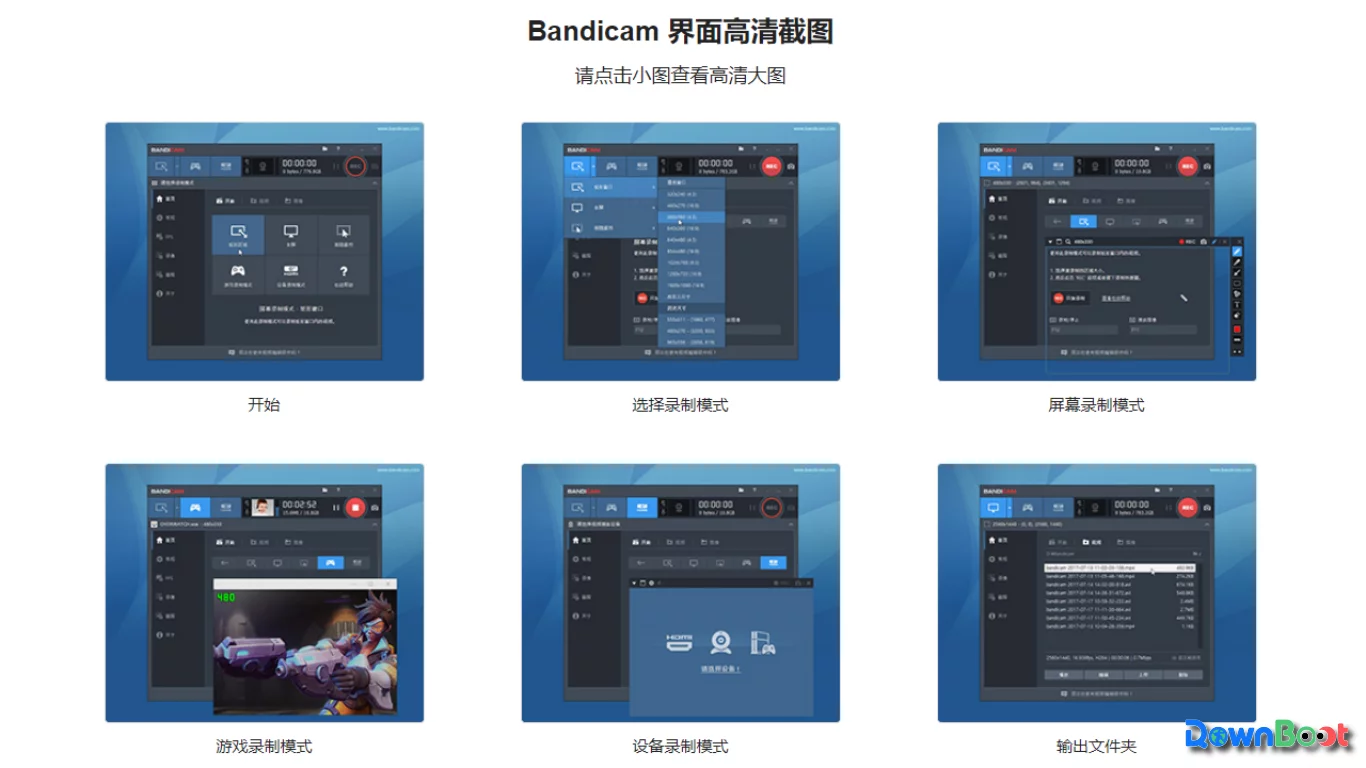
Simple to use, quick to learn. Compared to professional tools like OBS Studio, Bandicam's interface is much more intuitive. You can accomplish most recording tasks with simple settings, which is very friendly for ordinary users without complex technical needs. The software offers several recording modes – full screen, region, game, and device capture – covering almost every everyday recording scenario.
Real‑time drawing features. During recording, Bandicam supports drawing shapes or adding annotations directly on the screen. This is very handy for tutorials, product demos, or online meetings. Compared to adding annotations later in post‑production, the real‑time drawing feature lets you do most of the markup while recording, saving time in editing.
What Could Be Better
Bandicam isn't perfect – there are a few things it doesn't do so well.
Live streaming is weaker. OBS is a better choice here, thanks to its rich plugin ecosystem, strong scene management, and robust streaming capabilities. If you need to stream, Bandicam probably isn't your best bet.
Limited video editing features. Bandicam is not a video editor. After recording, you'll still need Premiere, DaVinci Resolve, or CapCut for any serious post‑processing.
Limited extensibility. Unlike open‑source software like OBS, Bandicam does not support plugins, meaning its functionality is relatively fixed. For users who need customisation or advanced features, Bandicam's flexibility is lacking.
Free version restrictions. The free version limits each recording to 10 minutes and adds a watermark (www.BANDICAM.com) at the top of the video. Users who need more may have to purchase the full version to remove these limitations.
Free Usage License
Bandicam comes in two flavours: Free and Licensed.
Free version: Recording is limited to 10 minutes per session, and a watermark is added to the top of the video. No scheduled recording feature, but both game and screen recording modes are available.
Licensed version: No time limits, no watermarks, supports scheduled recording and auto‑stop. As long as your computer can handle it, you can record continuously for over 24 hours. If you uninstall Bandicam after purchasing, you can reuse your license key.
Supported Platforms / Languages
Bandicam supports Windows and also offers a macOS version. The Windows version supports up to 4K UHD recording, while the macOS version can go up to 5K resolution.
The interface supports multiple languages, including Simplified Chinese, Traditional Chinese, English, and others – you can switch in the settings.
Bandicam vs OBS Studio
Many people hesitate between Bandicam and OBS Studio. Here's a quick comparison:
| Comparison | Bandicam | OBS Studio |
|---|---|---|
| Ease of use | Simple | Steeper |
| Game recording | Excellent (DirectX/OpenGL/Vulkan optimised) | Excellent (requires manual tuning) |
| Live streaming | Average | Strong (industry standard) |
| Resource usage | Low | Depends on settings |
| Plugin extensibility | Limited | Rich |
| Price | Free + paid version | Completely free and open‑source |
OBS Studio is completely free and open‑source, focusing on high customisation, multi‑source mixing, and streaming capabilities – ideal for professionals or content creators willing to invest time in learning its settings. Bandicam, on the other hand, is a better choice for stability and low resource usage, especially on lower‑end machines. The two differ significantly in their design philosophy and target audience.
Who Is It For
- Gamers – who need high‑frame‑rate, high‑quality game recording without impacting game performance
- Content creators – who need to record tutorials, product demos, or desktop operations with good quality and reasonable file sizes
- Casual users – who want a screen recorder that's easy to pick up with no complex setup
- Budget‑conscious users – who can start with the free version and decide later if they need to upgrade
Alternatives
If you're interested in recording tools, these are also worth checking out: OBS Studio – completely free and open‑source, powerful for streaming and professionals, but with a steeper learning curve; ShareX – open‑source screenshot and recording tool, lightweight and great for quick captures; Xbox Game Bar – built into Windows, no installation required, good for fast game clips; Camtasia – a commercial suite that combines recording and video editing, suitable for users who want an all‑in‑one workflow.
Final Thoughts
Looking back, I think Bandicam's positioning is actually quite clear – it's not trying to replace OBS. It's more like a "start recording right after you open it" kind of tool. If your needs are simply to record games, tutorials, or save high‑quality videos, I think it's worth a try. Of course, if you need live streaming, multi‑scene switching, or plugin extensibility, OBS might be the better choice.