Camtasia Review: All-in-One Screen Recorder and Video Editor
Introduction
I used to think that screen recording and video editing were two separate things. Record a video, then open another software to cut the beginning and end, add some captions, adjust the audio – switching back and forth between tools was quite a hassle. Later I realised that there is actually a category of tools that combines both. Camtasia is one of them.
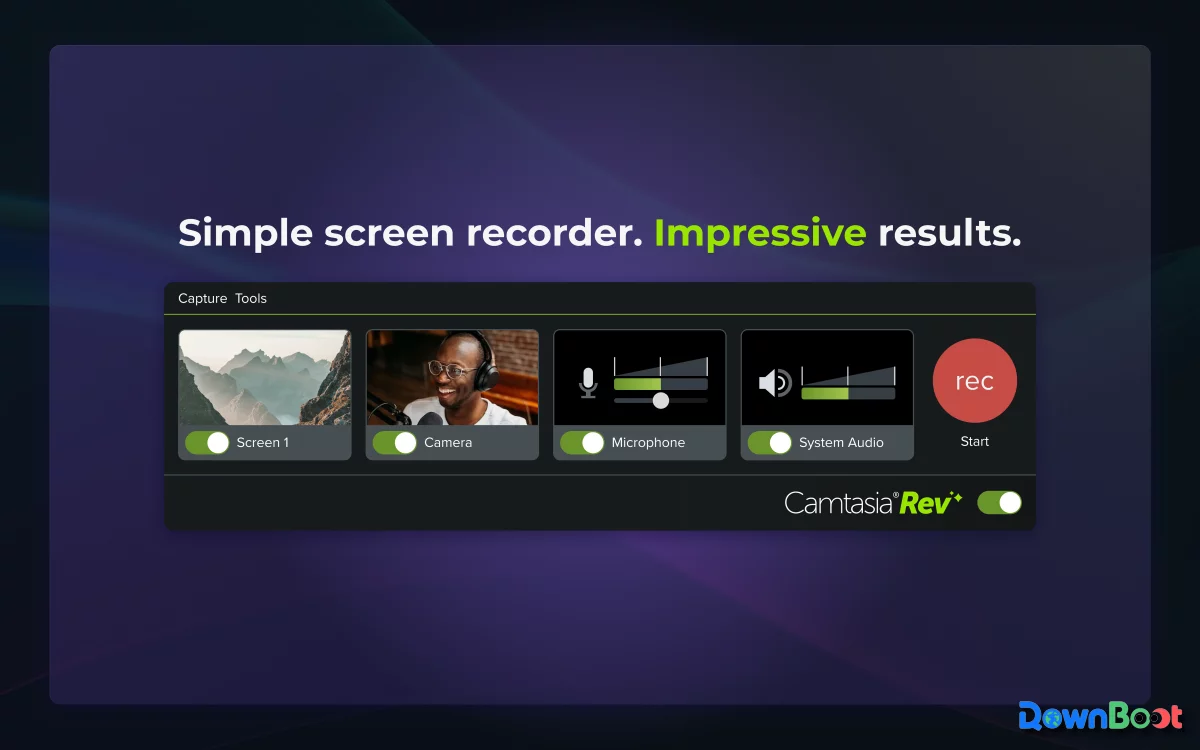
I first used Camtasia when I needed to produce a fairly complete set of tutorial videos. Previously I would record with OBS and then drag the footage into another editor. That time I tried using Camtasia for the whole workflow – from recording to editing to exporting – and found the process noticeably smoother. Once you stop recording, you can start editing right away – no importing/exporting, no need to re‑select formats or tweak settings again. One less step is one less step.
But its real value, I came to appreciate only later. It's not a tool that you can master in seconds, nor is it one of those overly complex professional editing suites. It sits somewhere in the middle: for people who need to produce "reasonably good videos" but don't want to spend a huge amount of time learning video editing.
Why I Recommend It
There are plenty of screen recorders out there, and quite a few editors too, but not many that truly integrate "recording" and "editing" into a single workflow. Like me, many people probably need to do at least a few things after recording: trim the unwanted parts, add text annotations at key points, adjust audio levels, and export in a suitable format. Having to juggle two applications for these tasks every time gets old fast.
Camtasia solves that by putting recording, editing, exporting, and even direct uploading all in one place – no more switching back and forth. It doesn't make you feel like "I just wanted to record my screen, now I have to learn an editing tool". It feels more like a tool designed for "non‑professional video makers" – feature‑complete but not overly complex.
TechSmith has been making this kind of tool for many years, and Camtasia is one of their core products. It has been refined over many versions and is now quite mature.
A Few Things I Like
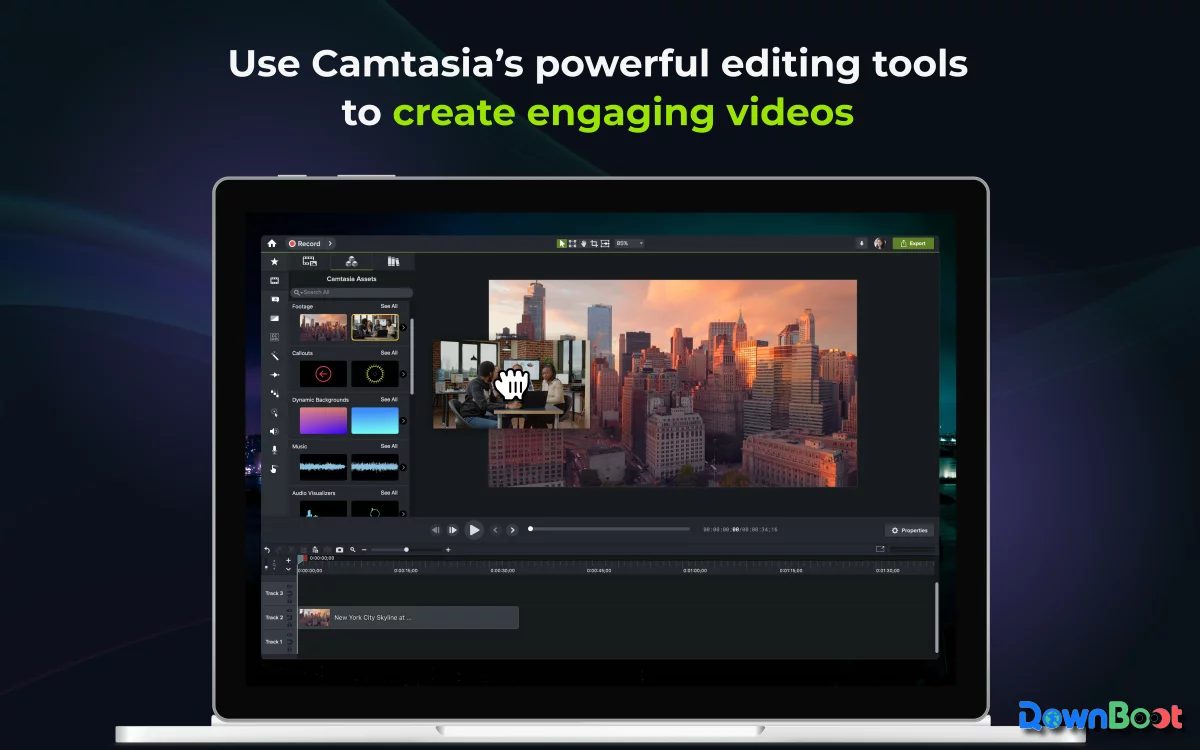
Record and edit without saving a separate file. This was the first thing I noticed when I started using Camtasia. After you stop recording, the video appears automatically on the timeline – you can start editing immediately without saving first and re‑importing. One less step in the workflow makes the whole experience noticeably smoother.
The annotation tools are better than I expected. When making tutorial videos, I often need to draw circles, add arrows, or highlight a particular button. Camtasia's annotation tools can be dragged directly onto the timeline – position, duration, size – all adjustable. Instead of manually creating shapes in an editor and timing their appearance, built‑in templates do the job with a simple drag‑and‑drop, saving a lot of time.
Animations and transitions are not flashy, but they're sufficient. I don't add many eye‑candy effects to my videos, but basic fades, zooms, and pans are easy to do in Camtasia. It comes with plenty of presets – just drag them onto your clip, no keyframe tweaking required.
Audio processing is more capable than I thought. I used to worry about background noise in my recordings. Camtasia's built‑in noise reduction works reasonably well – not magic, but good enough for everyday use. It also lets you adjust system audio and microphone audio separately, which is handy if you recorded them on separate tracks and want flexible control during editing.
Templates and themes – great for batch production. If you need to produce a series of videos with a consistent look, Camtasia's template feature is quite useful. Once you set up your intro, outro, fonts, and colours, you can apply the same theme to subsequent videos without re‑doing everything each time.
What Could Be Better
No tool is perfect, and Camtasia has its downsides too.
The price is not low. It's certainly more pleasant to use than many free tools, but the cost is also substantial. Individual users who only record occasionally may not want to spend that kind of money. It's better suited for those with regular video production needs rather than occasional users.
System resource usage is not negligible. If your computer is older or low on RAM, you may experience lag when working with long videos or multi‑track projects. Camtasia has certain hardware requirements – although the official minimum is 4GB RAM, in practice 8GB or more is recommended for a smoother experience.
Editing depth doesn't match professional tools. If you need advanced colour grading, multi‑camera editing, or high‑end visual effects, Camtasia may fall short. It's aimed at regular creators and trainers, not post‑production professionals.
The free trial has limitations. Camtasia offers a free trial period, but videos exported during the trial include a watermark. This restriction isn't overly harsh, but it does affect the user experience if you want to test the software thoroughly before deciding to purchase.
Free Usage License
Camtasia is commercial software. It offers a 7‑day free trial with full functionality, but exported videos will carry a watermark. For long‑term use, you need to purchase a license. Pricing: based on TechSmith's current official prices, the standard edition is around $140 per year (or a one‑time purchase option is available, usually around $299), with bundled editions costing more. Please check the official website for the latest pricing. Enterprise users can also opt for multi‑user subscriptions.
Supported Platforms / Languages
Camtasia supports Windows and macOS, with consistent interface and workflow across both platforms. The interface supports multiple languages, including Simplified Chinese, English, German, French, Japanese, and others – you can switch in the settings.
Who Is It For
- Content creators – who need to produce tutorials, courses, or product demo videos with decent quality, but don't want to spend too much time on editing
- Teachers and trainers – who record instructional videos or online courses and need annotations, highlights, and other emphasis tools
- Corporate trainers – who need to produce internal training materials, product explainers, etc., with high efficiency and consistent style
- People who don't want to use two separate tools – those who prefer an all‑in‑one solution to avoid the friction of switching between applications
Alternatives
If you're interested in all‑in‑one recording and editing tools, these are also worth checking out: ScreenFlow – a recording+editing tool for macOS, similar to Camtasia but Mac‑only; OBS Studio – completely free and open‑source, powerful for recording, but lacks a built‑in editor – you'll need to pair it with external editing software; Bandicam – a lightweight recorder focused on capturing, with very basic editing; Clipchamp – Microsoft's online video editor, integrated into Windows 11, suitable for light editing tasks.
Final Thoughts
I used to treat recording and editing as two separate tasks, but later I realised that combining them is actually more efficient. Camtasia won't turn you into a professional editor, but it can help ordinary people produce decent videos. The price is indeed high, but if you need to create videos regularly, the time it saves may be worth more than the money you spend.