OBS Studio – Free Open-Source Screen Recorder and Live Streaming Software
Introduction
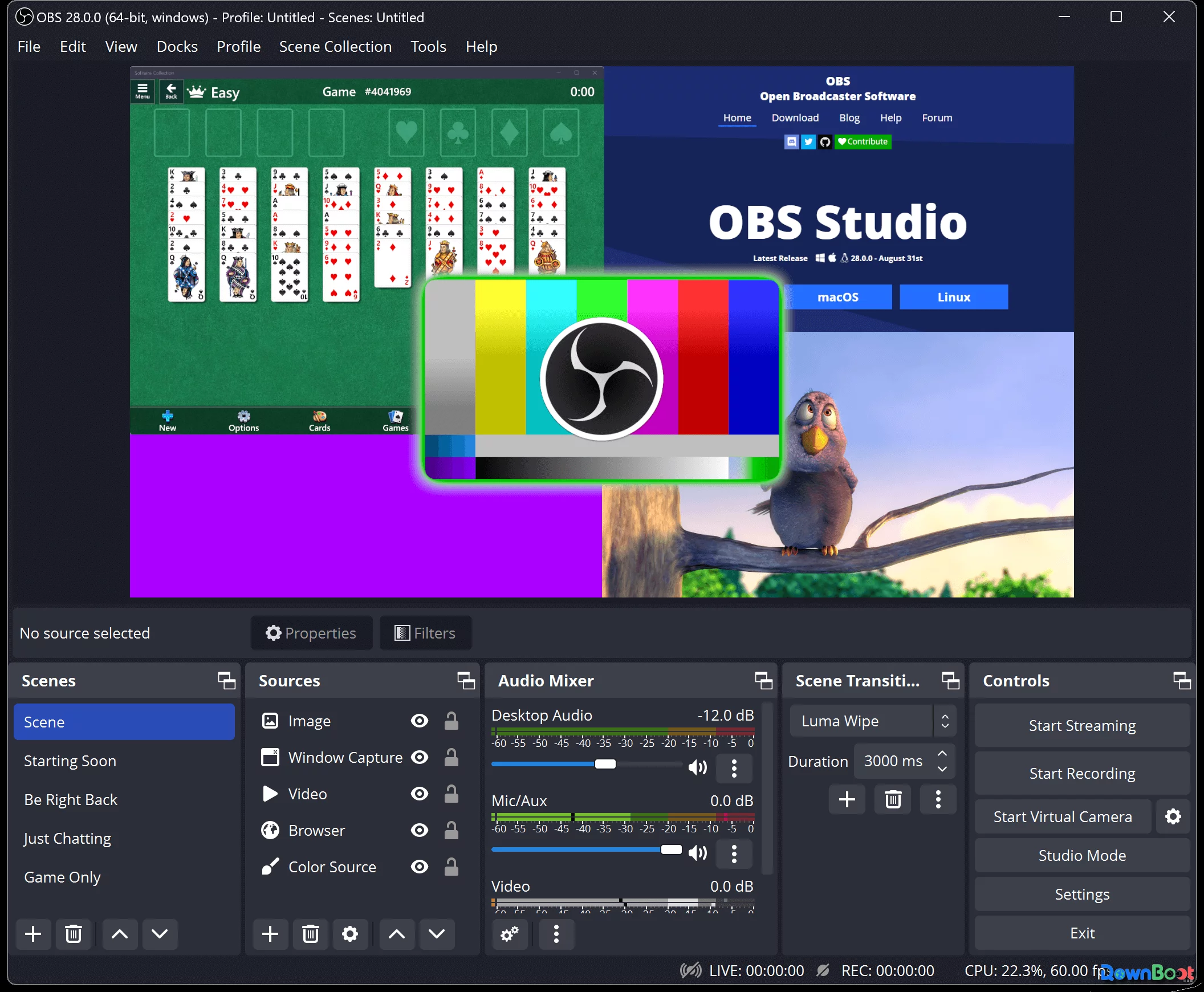
My first encounter with OBS Studio wasn't actually about screen recording. I was trying to start live streaming at the time, and after searching for free tools, I found that most either had watermarks or were too limited in functionality. Then a friend just told me "use OBS" without much explanation. I downloaded and installed it, and to be honest, when I opened the software, I was a bit overwhelmed – the interface was full of unfamiliar terms: scenes, sources, filters, streaming – completely different from the "screen recording gadgets" I had used before. I initially thought this was just another open-source tool too complex to use, but after actually using it for a few days, I realised there was a reason for its complexity – it doesn't just give you a "record" button and call it a day; it breaks down the entire "video production" workflow so you can build it yourself. That sense of freedom is something other recording software just can't offer. I later came to understand that OBS Studio isn't one of those "one-click recording" tools – it's more like a free live production workstation. Whether you're recording tutorials, doing live streams, or creating video assets, it works for all of it, and it's completely free, ad-free, and without any feature restrictions.
Why I Recommend It
Many people start looking for recording software by searching for "free screen recorder", but once they actually start creating videos, they quickly realise that basic recording tools aren't enough. Game streaming, tutorial videos, YouTube content, online courses – these scenarios don't just need screen recording; they need a complete video production toolkit. OBS Studio was built for exactly these scenarios. Its core capabilities can be broken down into several areas: screen capture, camera recording, real-time audio mixing, multi-scene switching, and live streaming. It sounds complex, but each module is solid, and it supports Windows, macOS, and Linux, with the latest version being 32.1.2. Unlike many commercial recording tools, OBS Studio is open-source software, released under the GNU General Public License v2, which means its source code is completely open – anyone can view, modify, or contribute code. No hidden charges, no subscription tiers, no premium features locked behind a paywall. Since the project launched in 2012, OBS has grown from a simple streaming tool into a professional production platform used by creators worldwide. The community-contributed plugins and scripts mean it can cover almost any recording or streaming need.
A Few Things I Like
The scene switching design. This was the most impressive feature when I first used OBS. You can create multiple scenes – for example, one scene with "game capture + webcam", another with "desktop + slides", and another with just "webcam" – and switch between them with a single click during a live stream or recording. You can even add transition animations for a smooth effect. For people making tutorials or doing live streams, this feature is incredibly useful.
The sources system is very flexible. Each scene is made up of multiple "sources" – window capture, game capture, webcam, images, text, browser pages, and more. You can layer them, resize them, adjust transparency, and combine them into almost any layout you can imagine. This modular design makes OBS applicable to a wide range of use cases.
The audio controls are detailed. OBS comes with an intuitive audio mixer where each source can have its volume adjusted individually, and you can add filters like noise suppression, noise gate, and gain. For live streaming or recording scenarios where high-quality audio is critical, this feature is essential. It also supports VST plugins, allowing further extension of audio processing capabilities.
The plugin ecosystem is rich. OBS provides a powerful API that supports Lua or Python scripting, meaning the community can continuously add new features to it. Over time I've installed several plugins – like automatic scene switching and more advanced subtitle capabilities – and the installation was straightforward, with stable results.
Studio Mode is very practical. This mode lets you adjust all your content in the preview window before pushing it to stream or recording, so you can confirm everything looks right before going live. For anyone who needs to ensure broadcast quality, this feature can prevent many on-air disasters.
What Could Be Better
OBS's biggest issue isn't features – it's the learning curve. When you first open it, the interface can indeed feel overwhelming, with many settings and options – the default configuration may not suit everyone's needs. Beginners may need some time to understand concepts like "scenes", "sources", "encoding", and "bitrate" before they can achieve ideal recording or streaming quality. Additionally, OBS's resource usage is relatively high – although it supports multiple video encoding methods to reduce system load, if you're on a lower‑spec machine, recording high‑resolution video or using multiple complex scenes may still put a strain on performance. That said, these "drawbacks" are also the flip side of its "power" – more features and customisability naturally require some learning investment. If you only record your screen occasionally, you might not need such a complex tool; but if you're creating video content or streaming long‑term, investing time in learning OBS's settings is well worth the return.
Free Usage License
OBS Studio is completely free, released under the GPL-2.0 open-source license – no ads, no subscriptions, no feature limitations. There's no such thing as a "free version" versus a "paid version" – all features are available to everyone, and you don't need to pay extra for any advanced functionality. If you find the software useful, you can voluntarily support the project through Patreon, OpenCollective, or PayPal. OBS's source code is hosted on GitHub, and anyone can view, modify, or contribute code – this transparent open‑source model is also a key reason it has continued to grow for over a decade, building a large user base and extensive plugin ecosystem.
Supported Platforms / Languages
OBS Studio supports Windows (Windows 10 and 11), macOS (12.0 and above), and Linux (with various installation options including Flatpak and Ubuntu PPA). The interface supports multiple languages, including English, Simplified Chinese, Traditional Chinese, Japanese, Korean, German, French, Spanish, and more – if you prefer using a Chinese interface, you can switch it in the settings.
Who Is It For
- YouTube content creators – recording tutorials, gameplay, product reviews, and more
- Twitch / game streamers – live streaming, multi‑scene switching, real‑time interaction
- Online educators – recording courses, live teaching, screen demonstrations
- Corporate trainers – recording training videos, product demos, meeting documentation
- Developers who need to record tutorials – capturing code demonstrations and software walkthroughs
- Users who want a free, professional recording tool – who don't want to pay for commercial software but still need professional‑grade features
Alternatives
If you're interested in OBS Studio, these tools are also worth checking out: ShareX – an open‑source screenshot and recording tool, lightweight and great for quick captures; ScreenToGif – a lightweight GIF recorder, perfect for creating animated GIFs; Streamlabs Desktop – a custom version based on OBS with more built‑in streaming tools and templates; Bandicam – a commercial recording tool with a user‑friendly interface, suitable for beginners, though the free version includes a watermark; and Camtasia – a commercial tool that combines screen recording and video editing, ideal for users who need an all‑in‑one workflow.
Final Thoughts
OBS Studio's greatest strength isn't simplicity – it's freedom. It may not be the most beginner‑friendly tool for first‑time recorders, but for streaming, tutorial creation, and long‑term content production, it provides a completely free professional solution. If you're willing to invest some time in learning its settings, OBS Studio can serve you well for a long time.