Krita: Free Open-Source Digital Painting Software & Photoshop Alternative
I don’t recommend PS first anymore
Honestly, these days when someone asks me what software to start with for digital drawing, I don’t really recommend Photoshop first.
A few years ago, I would have mentioned it without hesitation. It’s the most famous, has the most tutorials, and it almost feels like you’re not a “real” artist if you don’t use it. But now I usually say: why not give Krita a try?
Don’t get me wrong—PS hasn’t gotten worse. It’s just that I eventually realised something: it was never designed specifically for drawing. Retouching, layout, web design—it crams everything in. Krita, on the other hand, is built for people who paint. I didn’t really see that distinction at first.
How I found Krita
How did I come across Krita? Probably like a lot of people—by searching for “free Photoshop alternatives.” The results kept throwing up the same names: GIMP, Paint.NET, Photopea… Krita was often in the mix too. I initially assumed it was just another half‑baked PS clone.
Then I opened it, and realised I was wrong.
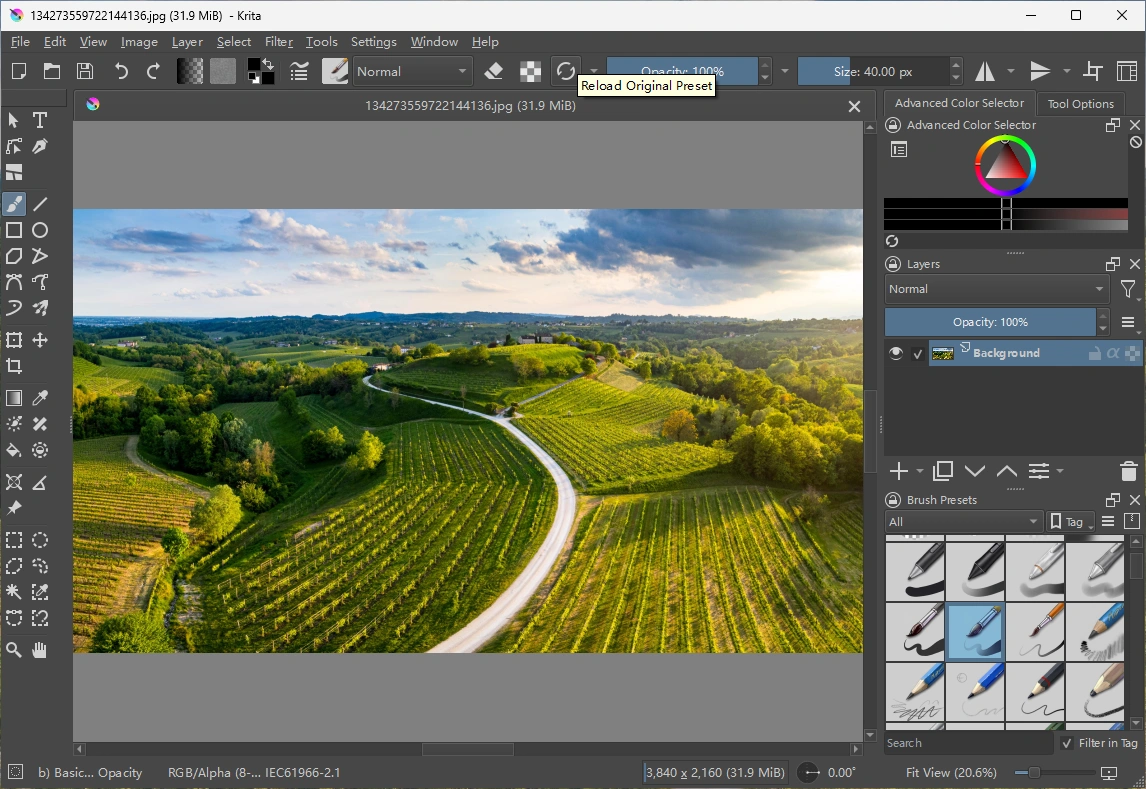
It’s not trying to copy PS at all. The interface doesn’t shove a bunch of photo‑adjustment tools you’ll never use in your face. By default, it gives you brushes, layers, colour wheels, and canvas controls right up front. If you’re like me—your first move is to create a blank canvas, not import a photo—that layout makes everything feel much more natural.
Brushes and pressure sensitivity – actually pretty good
Let me mention a few things that made me go “wow, nice.”
The brush engine is genuinely strong. It comes with hundreds of presets: pencils, watercolours, charcoal, markers, airbrushes—you name it. And every brush is highly customisable. What surprised me most was that I could just drag my old ABR brush packs from Photoshop straight into Krita and they worked. For someone who gets anxious about switching software, that was a huge relief.
Pressure support is solid too. My old drawing tablet was recognised right away, and the pressure response felt natural. There’s also a “brush stabiliser” feature—honestly a lifesaver if your hand shakes a bit. It smooths out those tiny tremors when you draw long lines, and the effect is pretty noticeable.
Layers and animation – good enough
Layer management is similar to PS in principle—masks, clipping layers, filter layers, all there. But Krita adds a few non‑destructive editing tools that are really handy when you’re experimenting, so you don’t have to worry about ruining your work.
Oh, and it even has built‑in animation tools. Not a replacement for dedicated animation software, but for simple frame‑by‑frame stuff with onion skinning, it’s perfectly fine. I tried it once and was pleasantly surprised.
File format‑wise, it opens and saves PSDs. But a word of caution: if your PSD relies heavily on Photoshop‑specific smart objects or special effects filters, they might not come through perfectly. For typical illustration layers, though, it works surprisingly well.
Free, no catches, and cross‑platform too
Now, about the whole “free” thing.
To be honest, I’m automatically suspicious whenever I see “free” these days. Either they watermark your exports, limit what you can save, cripple features, or keep nagging you to upgrade. Krita does none of that. No ads, no subscription, no hidden paywalls. You download it from the official site, install it, and every feature is available from the start—you don’t even need to create an account.
It’s also open source, under the GPL. You can modify it, or even contribute to development if you want.
One curious thing, though—Krita is also sold on Steam and the Microsoft Store for a few bucks. But if you buy it there, you get exactly the same software as the free version. The payment is purely a way to support the development team. I think that’s refreshingly transparent, and it actually makes me more willing to support them.
Platform support is broader than I expected too. Windows, macOS, Linux—all covered. There’s even an Android version. I installed it on a tablet once, paired a Bluetooth keyboard and stylus, and it was surprisingly usable. On Windows, you also get a portable ZIP version that runs without installation—great for throwing on a USB stick and using anywhere.
System requirements aren’t demanding. The official recommendation says 4GB RAM, but I’d suggest 8GB or more if you work on large canvases. My old laptop from a few years back runs it without breaking a sweat.
Drawing is drawing, retouching is retouching
But would I say it can completely replace PS? I wouldn’t go that far.
If you spend your days retouching photos, processing RAWs, or doing complex commercial layouts with tons of layers, Krita won’t help you much. It doesn’t even try to offer those professional image‑editing tools. But if you’re purely drawing—starting from a rough sketch and working your way through inking and colouring—then Krita’s “narrow focus” is actually a strength. The whole software revolves around you, rather than you hunting for features.
I’ll admit, the first few days felt a bit awkward. Keyboard shortcuts are different, menu placements don’t match, and some tool logic is completely unlike PS. I kept clicking in the wrong places and got a little frustrated. But after about a week, those differences started to feel natural. Muscle memory can be rebuilt.
Who should try it? And a final thought
Who might want to give it a shot?
I’d say—people who want to start drawing on a tablet but don’t want to splurge on expensive software right away. Students, beginners with a new tablet, anyone interested in comics or concept art—it’s worth a try. If your daily work is mostly photo editing, GIMP or Photopea might suit you better.
Final honest thought.
I used to believe that free software always meant some kind of compromise. Either the brushes wouldn’t feel right, or the interface would look half‑finished. But Krita really broke that impression. It’s not a Swiss Army knife, and it never tried to be. It just focuses on doing one thing—painting—really well, and keeps improving year after year. The result is a mature, professional tool that costs absolutely nothing.
Even if you’re already using PS, it might be worth installing Krita just to try. Who knows—one day you might open it and never want to switch back. That’s exactly what happened to me, anyway.