Raycast Review: The Ultimate Productivity Launcher for macOS
From Spotlight to Raycast
I used macOS's built-in Spotlight for years, always thinking it was "good enough". Until one day, I had to juggle several things at once – find a document from last week, copy a piece of code, check a currency exchange rate, calculate a time difference, and move the current window to the left half of the screen. That was when I realised Spotlight is almost useless in these scenarios. You have to open Finder, open your browser, open the calculator, manually drag windows around... and all these actions add up to enough interruptions to break your workflow several times over.
Then I started using Raycast. My first impression wasn't "wow, this is fast" – it was "oh, all these things can be done here." No need to switch apps, no need to leave the keyboard. Just hit the shortcut to bring up the input box, type what you want to do, hit Enter – and it's done.
After using it for a while, I found myself rarely reaching for the Dock or opening Finder anymore. Raycast became my primary entry point for interacting with my Mac every day.
What Is Raycast
Raycast is a macOS productivity launcher – or rather, it consolidates dozens of efficiency tools into a single shortcut. You can use it to launch apps, search for files, manage clipboard history, run calculations and conversions, control window layouts, manage system settings, call up AI, and install thousands of extensions from the official and community stores to connect with third‑party services like GitHub, Notion, Slack, Spotify, and Google Drive.
Raycast is now available on Mac, Windows, and iOS. The official extension repository on GitHub has already amassed over 7.6k stars and 6.5k forks, reflecting a highly active community.
Why I Recommend It
The core value of Raycast isn't that any one feature is exceptionally powerful – it's that it puts everything in one place. No need to switch between different tools, no need to memorise a bunch of shortcuts – one input field is enough.
App launching and file search. This is the most basic function, and the first step in replacing Spotlight. Press Option+Space (the default shortcut), type the first few letters of an app or file name, hit Enter – and it opens. The response speed is remarkably fast – a Wired review noted that opening an app not in your Dock with a mouse takes about 30 seconds, while doing it with a keyboard takes less than 2 seconds.
Clipboard history. This is a major reason many people install Raycast. It continuously records everything you copy – text, links, images – and when you need something, just hit the shortcut, search for a keyword, and you'll find what you copied earlier. No more switching between windows to find that half‑copied line of code, and no more losing your clipboard after a restart.
Window management. Type "left" to move the current window to the left half of the screen, "right" to move it to the right, "maximize" to maximise it. No need for separate window management tools like Rectangle – Raycast has it built in.
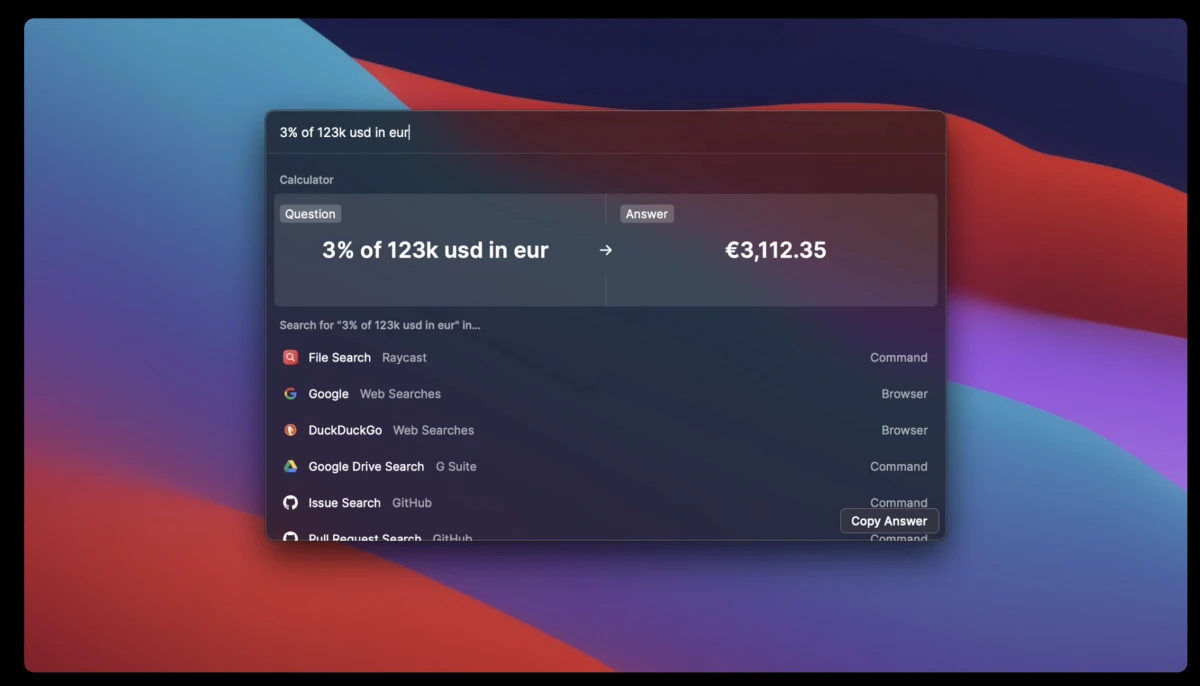
Calculator and conversions. It supports mathematical calculations, currency conversion, unit conversion, time zone conversion, and date calculations. No need to open a browser and search for "1 USD to CNY" – just type it directly into Raycast.
System and app controls. Type "sleep" to put your computer to sleep, "dark mode" to switch to dark mode, "bluetooth" to toggle Bluetooth. You can also view calendar events, search for contacts, and quickly send emails.
Extension Store. This is the biggest difference between Raycast and Spotlight. The official extension store has thousands of community‑maintained extensions covering all kinds of daily tools. The Google Workspace extension, for example, lets you search and open documents directly from Drive, and the Spotify extension lets you search for and play music. If you know React and TypeScript, you can even write your own extensions.
AI features. Raycast integrates AI at the operating system level, rather than as a separate chat window. Quick AI can answer questions directly, AI Chat can handle continuous conversations, and AI Commands let you create custom automation instructions. The key point is its deep integration with the system – AI can call on calendar, files, browser, terminal, and other system functions, enabling genuinely useful "AI that operates your computer for you."
What Could Be Better
Raycast isn't perfect – there are a few practical issues to consider.
Advanced AI features require a subscription. The base version is completely free, but advanced AI features – such as more powerful models and higher usage quotas – require a Pro subscription. For everyday use, the free version is more than sufficient; but if you rely heavily on AI, the Pro cost is something to factor in.
There's a slight learning curve for newcomers. With so many features, it takes time to explore and memorise them all. At first, you might only know about launching apps and searching files, and gradually discover clipboard history, window management, calculator, extensions... and so on. Fortunately, Raycast's interaction design is intuitive – whatever word you type, it will try to match it with a corresponding command.
The Windows version is still evolving. Raycast is natively a macOS application, and the Windows and iOS versions are still in Beta, with feature coverage and stability that don't yet match the macOS version. If you're primarily on Windows, the experience may not be as complete as on macOS at this stage.
Raycast vs Alternatives: How to Choose
Many people hesitate between Raycast, Alfred, and LaunchNext. Here's my take.
Raycast vs Spotlight: This isn't really a choice – Spotlight is too basic. It can only launch apps, search files, and do simple calculations. Raycast adds clipboard history, window management, extensions, AI, and more. If you're a heavy Mac user, Raycast is a comprehensive upgrade.
Raycast vs Alfred: Alfred is a veteran productivity tool with extremely powerful workflows and deep customisation. However, Alfred's payment model is per‑version buyout, which isn't cheap. Raycast's core features are completely free, with only AI‑related Pro features requiring a subscription. If you're on a budget, Raycast offers better value. Also, Raycast's UI is more modern, and its extension ecosystem is growing rapidly.
Raycast vs LaunchNext: Their focus areas are quite different. LaunchNext is more about replacing Launchpad – it solves the problem of "macOS 26 removed Launchpad, how do I get my app launcher back." Raycast has a broader scope – it's a productivity hub that covers clipboard, window management, AI, extensions, and more. If you just need a beautiful app launcher, LaunchNext is enough; if you want to replace multiple efficiency tools with one, Raycast is the better choice.
Who Is It For
I think Raycast is best suited for: Mac users who open dozens of apps and files daily, writers and developers who manage large amounts of copied content, multitaskers who frequently adjust window layouts, people who want to use AI to assist their daily work, and anyone who finds Spotlight insufficient but doesn't want to install a bunch of scattered productivity tools.
Of course, if you only open a browser to check web pages and occasionally use a document, Spotlight is still perfectly adequate. The value of Raycast lies in the fact that – when you need to do more – it's always there for you.
Alternatives
If you're interested in macOS productivity tools, these are also worth checking out: Alfred – a veteran productivity launcher with extremely powerful workflow features, though full functionality requires a paid license; LaunchNext – a free and open‑source Launchpad replacement, suitable for macOS 26 and above; Raycast strikes the best balance between "free feature coverage" and "modern user experience."
Final Thoughts
Raycast isn't the kind of software that delivers instant gratification upon installation – its value reveals itself gradually. At some point, you'll suddenly realise you haven't opened Finder's "Applications" folder in a long time, you haven't manually dragged windows around, and you haven't been frustrated by not being able to find something you copied earlier.
It won't change the way you use your Mac – but it will make the way you use your Mac feel much smoother. For anyone who interacts with their computer every day, that feeling of "a few less minor hassles" matters far more than any flashy feature.