Everything: The Fastest File Search Tool for Windows
Introduction
Finding files – I used to think it was as simple as "just search for it". Until one day, I urgently needed to locate a project file, and Windows Search spun for nearly two minutes without any result. Then a friend sent me a link and said, "Try this."
That software was Everything. Since then, I've never used Windows' built‑in search again.
What Is Everything
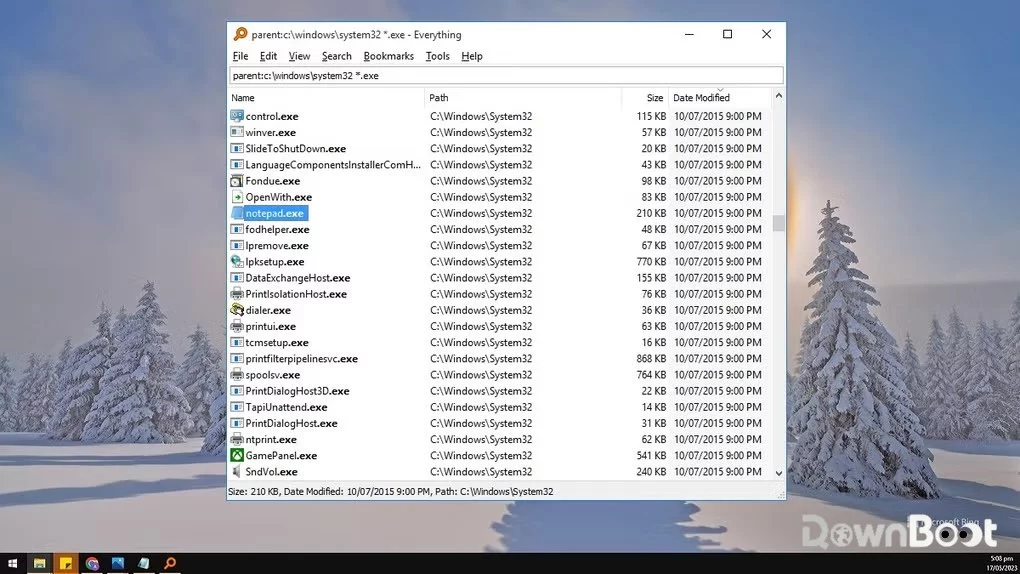
Everything is a file search tool for Windows, developed by voidtools. The biggest difference between Everything and Windows Search is: Everything doesn't "search" – it "lists".
When you open Everything, it displays every file and folder on your computer right away – that's where the name comes from. When you type a keyword, it simply filters the already‑listed items rather than scanning your hard drive on the spot.
How fast is it? Results appear instantly as you type. The installer is under 2MB, and for the first index, 20,000 files take only 1 second – a million files take about 1 minute.
Why I Recommend It
To be honest, what impressed me most about Everything isn't how "smart" it is – it's actually quite "dumb". It does one thing: find files by their names quickly. No content search, no semantic analysis, no related file recommendations. Just pure, extreme speed.
Much faster than Windows Search. Windows Search indexes file content, metadata, and all sorts of file types – which makes it slow and resource‑heavy. Everything only indexes file names and folder structures, so it can return results instantly as you type.
Extremely low resource usage. The installer is under 2MB, and once running, you barely notice it. It sits quietly in the background, uses little memory, and doesn't slow down your system.
Real‑time index updates. Create, delete, or rename a file – Everything updates automatically. No need to manually rebuild the index; new files can be found immediately.
Completely free. Personal use is completely free, with no feature restrictions.
A Few Features That Made Me Feel "Worth It"
Very flexible search syntax. Beyond just typing file names, Everything supports many advanced search methods. For example, *.jpg finds all images, *.docx finds all Word documents. To limit a search to the D drive, type D:\ keyword.
Regular expression support. If you're comfortable with regular expressions, Everything's search power goes to another level. For instance, ^log.*\.txt$ can precisely match log files in a specific format.
Content search support. Many people think Everything can only search file names, but it also supports searching file contents. Enable "Index file content" under "Tools → Options → Content", and you can search for text inside files.
HTTP and FTP server features. Once enabled, you can remotely search files on another computer over the network. This is useful for users with multiple devices.
Command‑line support. Everything includes a command‑line tool called es.exe, letting you search files directly from the terminal. For users who prefer the command line, this is faster than opening the graphical interface.
Global shortcut support. Under "Tools → Options → Keyboard", you can set a custom shortcut to bring up Everything – for example, Alt+Q. Once set, you can summon the search box anytime without having to switch to the desktop.
What Could Be Better
Everything isn't perfect.
Primarily searches file names. While content search is supported, it requires additional configuration and isn't as fast as searching by file name. If you frequently need to search file contents, you may still need other tools.
Windows only. Everything is currently only available for Windows – macOS and Linux users are out of luck.
Relies on NTFS file systems. Everything's speed advantage is built on the NTFS file system. If your drive uses FAT32 or exFAT, the indexing mechanism works differently and speed may take a hit.
The interface is quite plain. Everything's design follows a "utilitarian" approach – no flashy visuals. If UI aesthetics matter to you, you might find it a bit basic.
Who Is It For
- Windows users who often can't find their files – this is the core audience
- Office workers who manage large numbers of files – the more files you have, the more Everything shines
- Developers and IT professionals – frequently need to locate files across vast numbers of folders
- Anyone who finds Windows Search too slow – once you try Everything, it's hard to go back
- Any computer user who values efficiency – time saved can be spent on more meaningful things
Alternatives
If Everything interests you, these are also worth checking out: Listary – another Windows file search tool with a more modern interface and support for Chinese pinyin search, though the free version is limited; WizTree – a disk space analyser that quickly shows which folders are taking up the most space, which pairs well with Everything; PowerToys Run – an official Microsoft tool built into PowerToys, offering app launching and file search with more features, but not as fast as Everything.
Final Thoughts
Everything is one of the most frequently installed tools on my Windows machines. Every time I reinstall my system, the first thing I install is a browser, and the second is Everything. It won't make you say "wow, that's amazing" – but it will make you grateful you have it every time you can't find a file.