DB Browser for SQLite – Free GUI Tool for Managing SQLite Databases
Introduction
When I first started working with SQLite, I found it pretty handy – a single file, no server setup, and you could just copy it and go. But the problem was that every time I wanted to see what data was actually stored inside, I had to open the command line and type .tables, SELECT * FROM xxx – back and forth, again and again. Then a friend recommended a tool called DB Browser for SQLite, saying it could open .db files just like Excel spreadsheets. I thought that was a bit of an exaggeration – how could a database management tool be as intuitive as a spreadsheet?
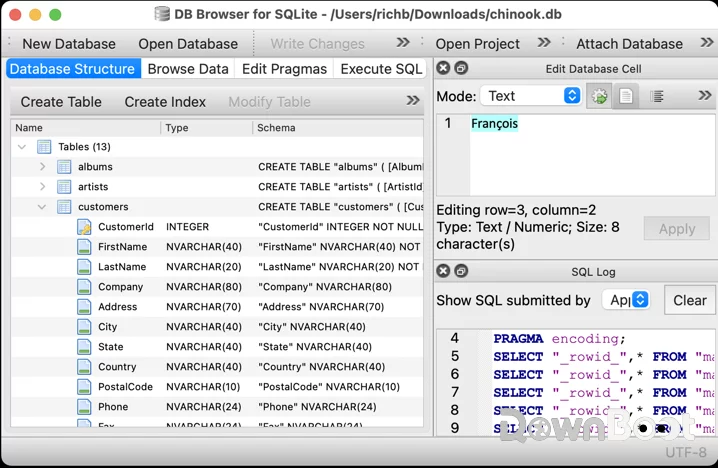
But after downloading and opening it, I saw that it really was exactly that – the database structure on the left, data tables in the middle, and a SQL query panel at the bottom. My first impression was: this is way simpler than I expected.
Why I Recommend It
The core problem DB Browser for SQLite solves is freeing SQLite databases from the command line. If you regularly need to view, edit, or debug SQLite files but don't want to memorise a bunch of SQL statements, this tool genuinely saves you a lot of effort.
Its positioning is very straightforward – it's a graphical management tool built specifically for SQLite. Unlike the "heavyweight" tools that support dozens of databases, DB Browser is lighter and more focused. The entire installer is just over 20 MB, it runs on Windows, macOS, and Linux, and there's even a portable version that works right out of the box.
More importantly, it's completely free and open‑source, released under the GPL license. No feature restrictions, no ads, no paywalls – it's free for personal use and commercial use alike. The project is actively maintained on GitHub, with the latest version being 3.13.0. For developers, students, or anyone who occasionally needs to open a SQLite file, that "completely free with no strings attached" promise is already a strong selling point in itself.
A Few Things I Like
The interface is as simple as Excel. Once you open a .db file, the data is displayed as a table – rows are records, columns are fields. Double‑clicking a cell lets you edit data directly, which feels a lot like editing a spreadsheet. For people who aren't familiar with SQL, this design significantly lowers the barrier to entry.
Creating and modifying tables without writing SQL. In the "Database Structure" tab, you can visually create, modify, or delete tables. Adding columns, setting data types, specifying primary keys and foreign keys – everything is point‑and‑click. Of course, if you prefer writing SQL, you can switch to the "Execute SQL" tab – both approaches are supported.
The SQL editor is very pleasant to work with. It includes syntax highlighting, auto‑completion, and execution history. After writing a query, just click the "Execute" button and the results appear directly in the table below. If a query isn't working as expected, you can use the "Explain Query Plan" feature to see the execution path and troubleshoot performance issues. For daily database debugging, this is incredibly useful.
Import and export are very convenient. It supports importing and exporting in formats like CSV, JSON, and SQL scripts. One scenario I frequently use is dragging a CSV file into DB Browser – it automatically detects the fields and creates the corresponding table. Query results can also be exported to CSV or SQL with a single click. For everyday data processing, this is something I use almost every time.
Supports SQLCipher encryption. If you need to work with encrypted SQLite databases, DB Browser also supports SQLCipher. You can open, modify, or even remove encryption from a database. For scenarios involving sensitive data, this feature is very practical.
Comprehensive database maintenance tools. It includes VACUUM (compressing and reclaiming fragmented space), integrity checks, Reindex, and other maintenance features. Running VACUUM regularly can effectively reduce database file size and improve read/write performance.
What Could Be Better
The interface is fairly traditional. Compared to many modern desktop applications, DB Browser's UI looks a bit "old‑school" – it's fully functional, but definitely not polished. If you have high expectations for visual design, you might find it a little plain on first impression.
It only works with SQLite. If you need to manage MySQL, PostgreSQL, or other databases, DB Browser won't be of any help. Its focus is specifically SQLite, so cross‑database scenarios are outside its scope.
For complete beginners with no database background, you still need to understand some basic concepts. While the graphical interface does lower the barrier considerably, if you have no idea what a table, a column, or a primary key is, clicking around may not get you very far. To be fair, though, this is a limitation of any database management tool, not just this one.
Also, when working with very large databases, the interface response speed can slow down. It's a lightweight tool, after all – it's not designed to handle enterprise‑level data measured in tens of gigabytes.
Free Usage License
DB Browser for SQLite is completely free, released under the GPL open‑source license. It's free for both personal and commercial use, with no feature restrictions, ads, or paywalls. The source code is fully open and hosted on GitHub – anyone can view it, modify it, or contribute.
Supported Platforms / Languages
DB Browser for SQLite supports Windows, macOS, and Linux. For Windows, both an installer and a portable version are available; macOS users can install it via Homebrew or download the .dmg file directly; on Linux, Debian/Ubuntu users can install it with sudo apt-get install sqlitebrowser. The interface supports multiple languages, including Simplified Chinese, which can be selected on first launch.
Who Is It For
- Developers – debugging apps or desktop software that use SQLite databases
- Data analysts – viewing data, running queries, exporting results
- Students – learning SQL and database fundamentals
- Anyone who needs to quickly view SQLite files – many applications store configuration or data in SQLite
- People who don't want to pay for database tools – free and open‑source with no hidden fees
Alternatives
If you're interested in SQLite management tools, these are also worth checking out: Letos (formerly SQLiteStudio) – more feature‑rich, better suited for developers who frequently write SQL; DBeaver – a universal tool supporting dozens of databases, powerful but heavier; Navicat for SQLite – commercial software, feature‑packed but pricey; DataGrip – from JetBrains, supports multiple databases, requires a paid subscription.
In short: if you're a beginner, or if you only need basic browsing and editing features, DB Browser for SQLite is the better choice. If you need more advanced database design or development features, Letos might be a better fit.
Final Thoughts
DB Browser for SQLite isn't the kind of software that will wow you with its looks on first glance. But when you need to open a SQLite database, it just works – smoothly, reliably, and without fuss. Free, open‑source, cross‑platform, and intuitive – these qualities together have made it the first tool I reach for whenever I need to inspect a SQLite file. If you frequently deal with SQLite, it's definitely worth keeping in your toolkit.