ShareX – Free Open-Source Screenshot and Screen Recording Tool
Introduction
Most people think taking a screenshot is as simple as pressing Print Screen. But if you have to do it every day – capture screens, record GIFs, record videos, upload to image hosting, generate links, blur sensitive info, run OCR, add watermarks, rename files – all those repetitive steps add up. Then I started using ShareX, and the biggest change wasn't that it takes screenshots faster – it's that many of those steps just happen on their own.
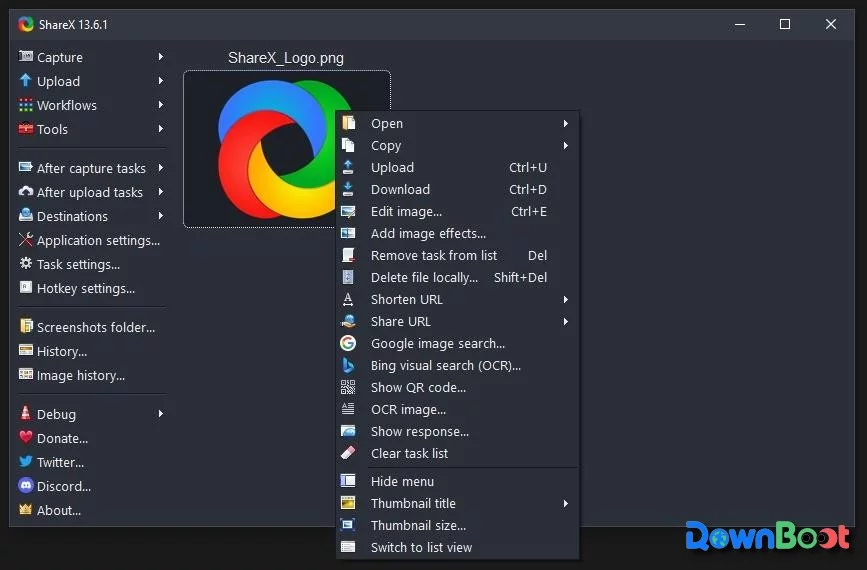
The first time I opened ShareX, I was overwhelmed by the number of options: screenshot, upload, OCR, hash, QR code, colour picker – even some features I'd never heard of before. My initial reaction was – why is this software so complicated? But once I actually started using it, I realised it's not designed for someone who takes a screenshot once in a while. It's for people who take dozens of screenshots every day. Screenshot, auto-save, auto-upload, auto-copy link – the whole process barely requires a second click.
Why I Recommend It
ShareX is positioned completely differently from typical screenshot tools. It's more like an automated workflow than just a screenshot utility. You can configure it to automatically rename files after capture, save them to specific folders, upload to image hosting, and copy the link to your clipboard. If you regularly write blog posts, technical documentation, or reply to questions with screenshots, this efficiency boost is immediately noticeable.
I later realised that ShareX is actually a comprehensive tool that combines "screenshot + recording + automation" – it's not just about taking screenshots, but about bringing together everything related to "capturing screen content" and chaining them together through automated tasks. There aren't many free tools that go this far.
A Few Things I Like
After taking a screenshot, I don't have to do anything else. This is my favourite part. Once configured, pressing the shortcut to capture a screenshot triggers auto-save, auto-upload, and auto-copy of the link – all in one go. No extra steps. When writing documentation or replying to a thread, I can paste the link right after capturing, without having to dig through folders, manually upload, or copy the link myself – ShareX handles all of that.
Scrolling screenshot works really well. Capturing long web pages or lengthy documents often requires manual stitching, or it's simply not supported by many tools. ShareX's scrolling screenshot feature automatically scrolls the page and stitches it into a single long image. For anyone who frequently captures web pages, code files, or chat logs, this saves a lot of hassle.
Screen recording + GIF, all in one tool. Although ShareX isn't primarily a screen recorder, it does support recording – both MP4 video and direct GIF generation. For quickly capturing a short demo or an animated effect, it's convenient not to have to open a separate recording tool.
OCR, so you don't have to type manually. Sometimes I need to copy text from an image or from content that isn't selectable on a web page. I use ShareX's OCR feature – just select the text area after capture, and it automatically recognises and copies the text to the clipboard. No more manual typing or reaching for another OCR tool. The accuracy is decent, good enough for everyday use.
Lots of upload destinations. ShareX supports dozens of image hosting services and cloud storage platforms – Imgur, Flickr, Google Drive, Dropbox, OneDrive, and even custom uploads to your own server. If you regularly share screenshots with others or save them to the cloud, this is incredibly useful.
What Could Be Better
The biggest issue with ShareX is the learning curve.
It's packed with features, and the first time you open it, the menus and settings can be overwhelming. Many features require configuration before they work – like setting up upload destinations, auto-rename rules, and automation task chains – all of which take time to understand and set up properly.
Also, screen recording relies on FFmpeg, and some features may require downloading additional components on first use. If you only need to record a video occasionally, tools like Xbox Game Bar or ScreenToGif are actually simpler and more straightforward.
Overall, ShareX is better suited for users who are willing to invest time in configuration and are looking for long-term efficiency gains, rather than a "works right out of the box" tool.
Free Usage License
ShareX is completely free, released under the GPL-3.0 open-source license. No ads, no subscriptions, no feature restrictions. All features are available to everyone, and it can be used freely for both personal and commercial purposes.
Supported Platforms / Languages
ShareX currently supports Windows only. The interface supports multiple languages, including English, Simplified Chinese, Traditional Chinese, Japanese, Korean, German, French, Spanish, and more – you can switch in the settings.
Who Is It For
- Developers – who frequently need to capture screenshots, record videos, write documentation, and log bugs
- Technical bloggers – who need lots of screenshots and automated uploads for tutorials and articles
- Content creators – who need screenshots, GIFs, and videos, all from one tool
- People who take screenshots frequently – dozens a day, without wanting to repeat manual steps
- Users who need OCR – to extract text from images automatically
- People who want auto-upload – screenshots sent to image hosting or cloud storage automatically
- Open-source enthusiasts – who prefer free, community-driven tools
Alternatives
If ShareX interests you, these are also worth checking out: ScreenToGif – a lightweight GIF recorder with a simple interface; Greenshot – a lightweight screenshot tool, simpler in functionality, good for quick captures; Lightshot – a basic screenshot tool with upload and sharing support, but more limited in features; Snipaste – a screenshot and pinning tool, great for pinning captures on screen for reference; Flameshot – an open-source screenshot tool with annotation and editing features, available on Windows but with a simpler feature set compared to ShareX.
Final Thoughts
ShareX is better suited for those who screenshot, record, and share content every single day. Unlike a basic screenshot tool that performs just one operation, ShareX chains the entire post-capture workflow together. It takes some time to get familiar with initially, but once you have it set up, it can easily become one of the most efficient screenshot tools on Windows.