Pinta – Free Open-Source Image Editor for Everyday Photo Editing
Introduction
More often than not, we just want to make a quick edit to an image – crop it, add some text, draw a few arrows, or resize it. Opening Photoshop for these tasks always feels like overkill, while the built‑in Paint in Windows is a bit too basic. If you've ever found yourself in this situation, Pinta is worth a try.
Why Recommend It
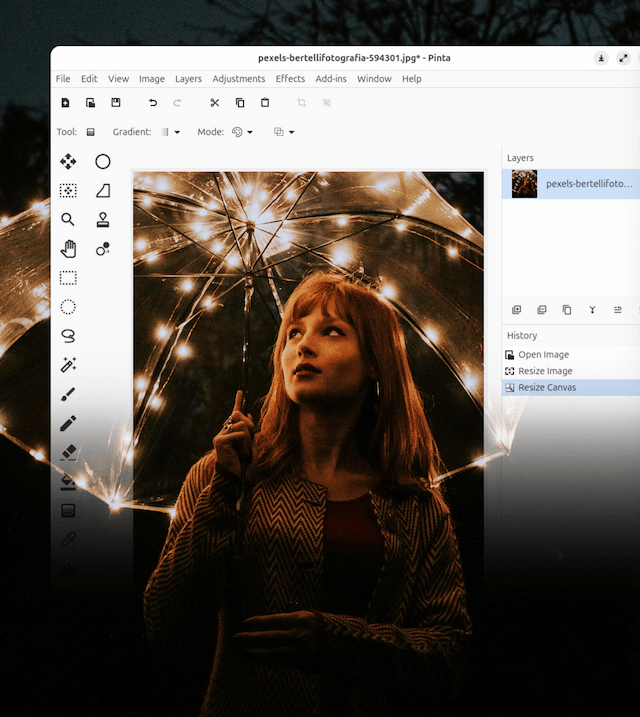
Many image editors fall into one of two extremes – either too simple or too complex. Pinta sits right in the middle: it retains essential editing features like layers, history, brushes, and selections, without the steep learning curve of Photoshop. For most everyday image editing tasks, it's more than sufficient.
It's not as overwhelming as Photoshop, nor as limited as the system‑built Paint app – it strikes a fine balance between being lightweight and offering the commonly used editing tools. Unlike many software products that keep piling on features, Pinta is remarkably restrained – it knows exactly what it should and shouldn't do. Launching the app takes just a few seconds, it won't slow down older machines, and its menus aren't cluttered with advanced features you'll never need.
A Few Things I Like
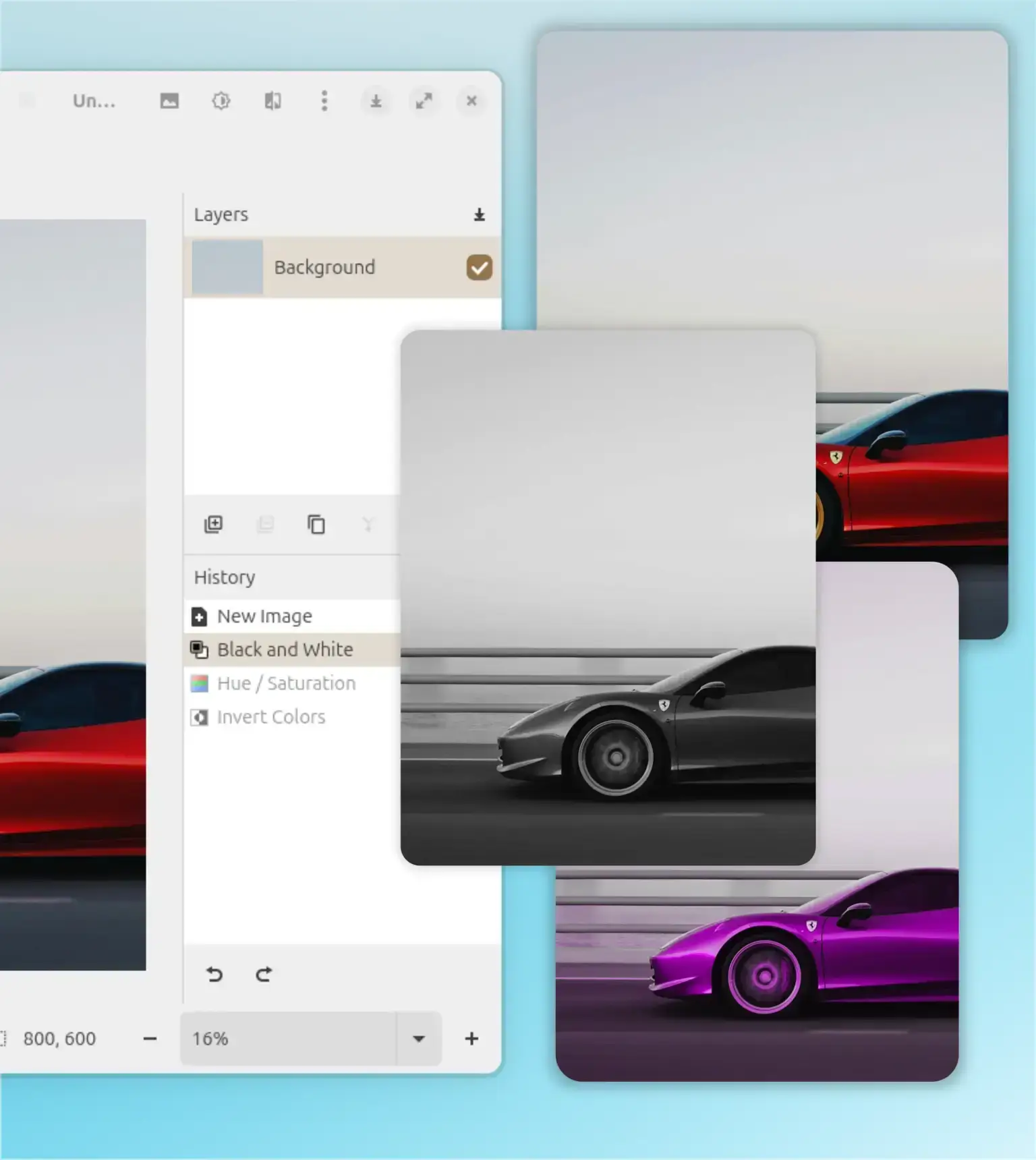
Layer support. This is the most significant difference between Pinta and Windows Paint. You can add multiple layers, rename, duplicate, reorder, and merge them – each layer can be edited independently. Text remains editable, shapes stay separate, and you don't have to commit everything at once. For a lightweight tool, having full layer capabilities already exceeds expectations.
Unlimited undo history. You can always step back if you make a mistake, without worrying that one wrong move will force you to start over. This "freedom to experiment" is especially welcoming for those new to image editing.
Intuitive interface, quick to learn. Pinta's interface is reminiscent of the classic Paint.NET – the toolbar layout is clean, with no hidden menus or complicated technical jargon. Even if you've never used professional design software, you'll find it easy to pick up. You can start working straight away, without the need to spend hours adapting, unlike GIMP.
Consistent cross‑platform experience. Versions are available for Windows, macOS, and Linux, with nearly identical interfaces. If you switch between different operating systems, you won't need to relearn anything – just open and go. This is particularly convenient for users who work across multiple platforms.
Things That Could Be Better
Pinta isn't a perfect piece of software, and it does have its limitations.
Not suitable for professional photo retouching. It lacks the advanced features found in Photoshop, and its layer capabilities are relatively basic – no masks, no advanced blending modes. If you need to work with RAW files, perform complex compositing, or handle commercial‑grade design work, Pinta may not be the right tool for the job.
The plugin ecosystem is less extensive than GIMP's. While Pinta does support plugin extensions, the number and activity of third‑party plugins still lags behind what GIMP offers.
Virtually no AI features. Many modern image editors are incorporating AI‑powered generation and retouching capabilities, but Pinta is almost completely blank in this area. That said, it was never intended for professional designers, so these shortcomings don't really undermine its core purpose.
Free Usage License
Pinta is completely free and released under the MIT open‑source license. There are no ads, no subscriptions, and no feature restrictions. Its source code is hosted on GitHub and is continuously maintained and updated by the community.
Supported Platforms / Languages
Pinta supports Windows, macOS, Linux, and *BSD. Its hardware requirements are low – it launches quickly, puts almost no strain on memory or graphics, and runs smoothly even on older computers. The interface is available in 34 languages, including Simplified Chinese.
Who Is It For
- Casual users – who occasionally need to crop, resize, or add text to images
- Students – who need simple image edits for homework or presentations
- Bloggers / content creators – who need to annotate screenshots, create graphics, or design cover images
- Office workers – who need quick edits for PPT illustrations or document images
- People who don't want to learn Photoshop – who need an easy‑to‑use tool without the complexity
- Linux / macOS users – who want a lightweight, cross‑platform image editor
Alternatives
If you'd like to explore other options, here are a few worth checking out: Paint.NET – a more feature‑rich lightweight editor for Windows, though Windows‑only; GIMP – a more powerful open‑source image editor, but with a steeper learning curve; Krita – an open‑source software better suited for digital painting; and Photopea – a browser‑based online image editor that supports PSD files.
Final Thoughts
I think Pinta's greatest strength isn't how many features it has – it's that it offers just enough. It's not as basic as Windows Paint, nor as overwhelming as Photoshop – yet it handles most everyday image editing tasks with ease. If you're simply looking for a lightweight, free, and stress‑free image editing tool, Pinta is definitely worth a try.