PhotoGIMP – Make GIMP Feel More Like Photoshop
Introduction
Many people have probably had this experience: a friend recommends GIMP, you download it excitedly, hoping it can replace Photoshop. But within half an hour of opening the software, you close it – not because it lacks features, but because the interface is too unfamiliar. All the tools are piled up on the left, the layout is completely different from Photoshop, and the shortcuts aren't the familiar Ctrl+J or Ctrl+T – even the simplest crop requires hunting around. PhotoGIMP was created to solve exactly this problem – it won't add any new features to GIMP, but it adjusts the interface and shortcuts to something Photoshop users will recognise.
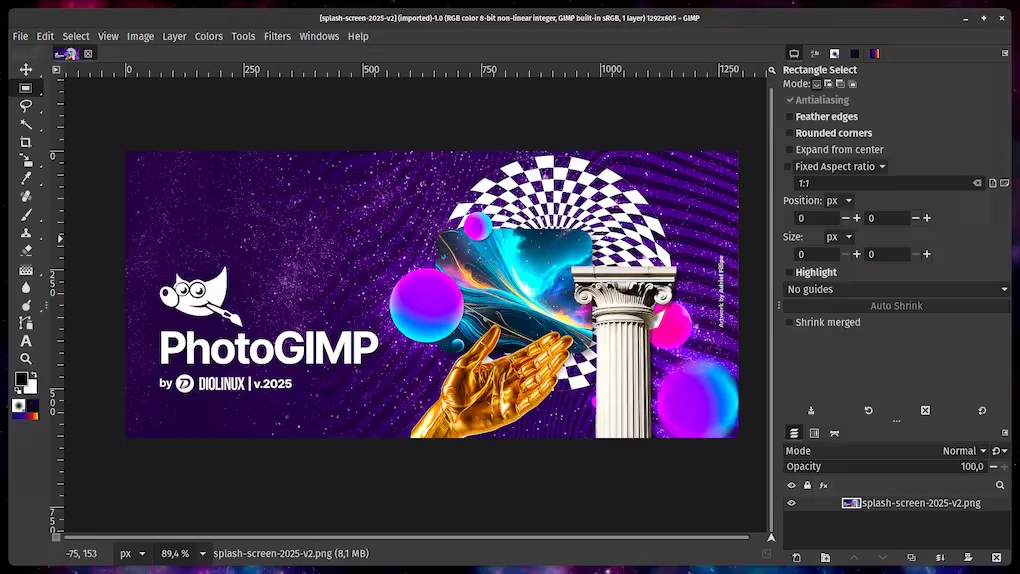
Why Recommend It
PhotoGIMP is essentially a community‑maintained configuration pack, and it has already earned over 13,000 stars on GitHub. What it does is simple: reorganise the toolbar layout, modify keyboard shortcuts, and adjust default window settings so that first‑time GIMP users coming from Photoshop don't feel completely lost.
The first time I used GIMP, I couldn't last more than half an hour before closing it. It wasn't because the software was lacking – it was because every tool was in a different place from what I was used to. Later I tried PhotoGIMP, and although it was still GIMP, at least I didn't have to search for every button. It didn't make me forget Photoshop, but it did make me willing to keep using it.
Key Features
- Photoshop‑style tool layout – tools are rearranged to mimic Adobe Photoshop's arrangement as closely as possible
- Custom splash screen – a dedicated PhotoGIMP splash screen appears on startup
- Maximised canvas space – default settings are optimised to provide the largest possible working area
- Photoshop keyboard shortcuts – shortcuts follow Adobe's official Windows documentation
- Custom icon and application name – appears as a separate entry with its own icon in the system menu
- Completely free and open‑source – built on GIMP, with no ads and no subscriptions
User Experience
The first time I launched PhotoGIMP, my biggest impression wasn't "it looks like Photoshop" – it was that I no longer had to search for tools. Many buttons were placed where I expected them, and the shortcuts felt natural – Ctrl+J to duplicate a layer, Ctrl+T for free transform – all the operations I'd used countless times in Photoshop could be reused directly, without spending time learning a new shortcut system.
Of course, underneath it's still GIMP, not Photoshop. But the learning curve is significantly lower. If you gave up on GIMP before because of its interface, I think it's worth giving it another chance.
Things That Could Be Better
PhotoGIMP isn't a perfect solution, and there are a few practical issues to consider.
It doesn't add Photoshop‑exclusive features. It only changes the interface and shortcuts – it won't bring Photoshop's smart objects, adjustment layers, content‑aware fill, or other advanced features to GIMP. If you rely on those, PhotoGIMP won't help.
Some menus still follow GIMP's logic. While the toolbar and shortcuts are adjusted, the menu structure, filter organisation, and dialog boxes are still GIMP's own – for example, the item names under the "Layers" menu aren't exactly the same as in Photoshop, so you may still need to look around a bit.
Configuration may need to be reapplied. After updating GIMP, your configuration might be reset, requiring you to reinstall PhotoGIMP. It's a good idea to back up your config before updating GIMP.
It's more useful for those with Photoshop experience. If you've never used Photoshop, sticking with GIMP's default interface might not be a bad thing – without any "muscle memory" to override, you might adapt more quickly.
Free Usage License
PhotoGIMP is completely free and is a community‑driven open‑source project. It is based on GIMP 3.0 or newer, and supports Windows, macOS, and Linux. Before using it, you need to install GIMP and run it at least once so that GIMP creates its configuration files, then install PhotoGIMP. Windows users can also install it via Chocolatey.
Supported Platforms
PhotoGIMP supports the same platforms as GIMP, including Windows, macOS, and Linux. The interface language follows GIMP's language settings – as long as GIMP is set to Simplified Chinese, PhotoGIMP's interface will also display in Chinese.
Who Is It For
- Photoshop users – who want to try free and open‑source software but don't want to relearn the interface
- Students – who need image editing tools but have a limited budget
- Open‑source enthusiasts – who want to use open‑source tools for daily work
- Users who don't want to use pirated Photoshop – who need a legitimate free alternative
Alternatives
If you're interested in the GIMP ecosystem, these are also worth checking out: GIMP – the foundation of PhotoGIMP, itself a powerful free and open‑source image editor; Krita – an open‑source tool better suited for digital painting; PhotoDemon – a lightweight open‑source image editor for Windows; Pinta – a lightweight option sitting between Windows Paint and GIMP; and Photopea – a browser‑based online image editor that supports PSD files.
Final Thoughts
I think the greatest value of PhotoGIMP isn't turning GIMP into Photoshop, but making GIMP more approachable for Photoshop users. It doesn't change GIMP's core functionality, but it reduces the time needed to adapt to a new interface. If you've always wanted to try a free image editor but found GIMP's interface off‑putting, start with PhotoGIMP – it won't make you forget Photoshop, but it might make you willing to stick with it. GitHub repository: https://github.com/Diolinux/PhotoGIMP