
Are you still just using the basic built-in photo viewer? Why not try nomacs instead? It is a free, high-quality, open-source image viewer that makes it incredibly easy to open all kinds of file formats like PSD, JPEG, PNG, TIF, BMP, RAW, PPM, and more. It works on almost every system, including Windows, Linux, FreeBSD, Mac, and OS/2, so you can enjoy it no matter what device you use.
nomacs is more than just a simple picture viewer; it is packed with powerful features like checking metadata, viewing GPS coordinates, renaming files, and setting file associations. If you need to do some quick editing, you can easily rotate, crop, or adjust the brightness, contrast, saturation, hue, gamma, and exposure directly within the app.
On top of that, nomacs has a built-in "False Color" feature to create unique artistic effects. One of its best tricks is "Multiple Instance Sync." This lets you open two copies of the program to compare different images side-by-side—they will zoom and move together in perfect sync, or you can even overlap them with different transparency levels to see the differences. Give it a download and try it out!

nomacs Setup & Language Guide
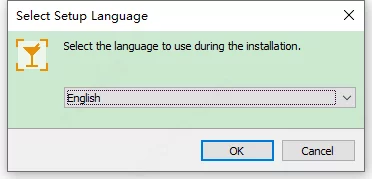
1. Download and unzip the package. Double-click "nomacs-setup-x64.exe" and select "English" to start the installation.
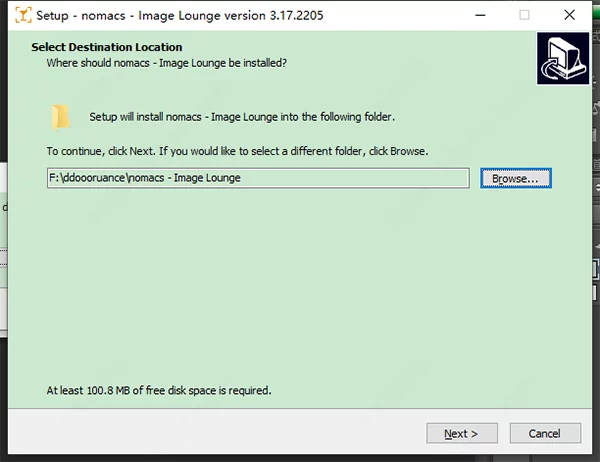
2. Choose your installation folder and follow the prompts to continue.
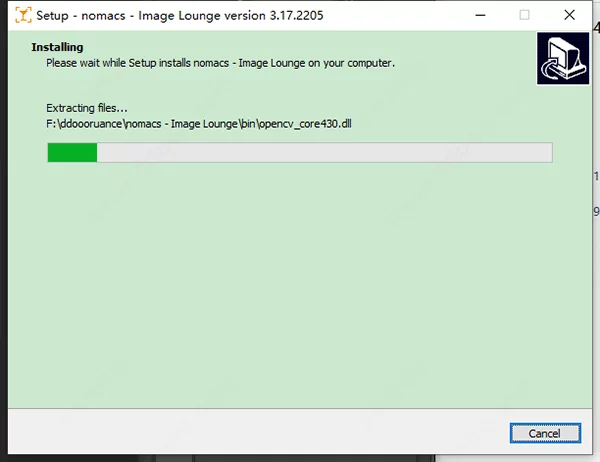
3. Wait a moment for the installation to finish.
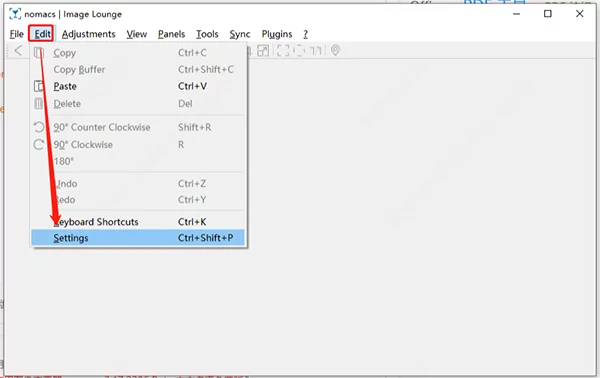
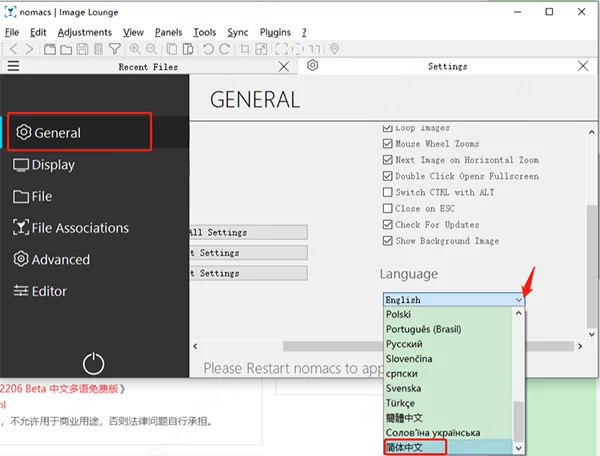
4. Once it's running, the interface might be in English. To change it, click "Edit" – "Settings", or just press Ctrl+Shift+P.
5. In the "General" tab, find the "Language" option and select "Simplified Chinese" (or your preferred language).
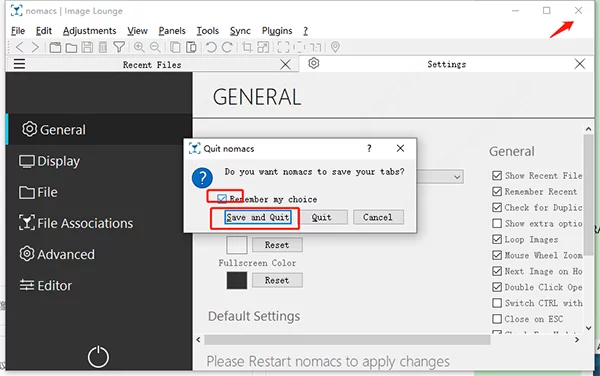
6. Click the "X" to close, check "Remember my choice," and then click "Save and Quit."
7. When you restart the app, the new language settings will be active. Easy!
Key Features
1. Clean Organization: A well-designed toolset that's easy to configure. You can just drag and drop photos right into the app.
2. Quick Access: Instantly browse files and folders on your computer to find the images you want to work on.
3. Wide Format Support: Opens almost everything, including PNG, JPG, BMP, PPM, ARW, PSD, DNG, TGA, ICO, CRW, MPO, and more.
4. Smooth Navigation: Zoom in/out, jump between images in a folder, and sort them by name or date. It also has a full-screen mode to help you focus.
5. Detailed Info: View thumbnails or slideshows, check camera metadata (exposure, date, model), view histograms, and even set images as your wallpaper.
6. Basic Editing: Rotate, resize, crop, and view GPS locations. You can save your edits as JPEG, PNG, TIF, and more.
7. Advanced Tools: Rename files in bulk, adjust advanced colors, create mosaic images from your photo library, and export data to TIFF format.
8. User Friendly: The intuitive layout works for beginners and pros alike. There is also a "portable" version available if you want to use it without installing it.
9. Free & Open Source: Licensed under GPL v3, it’s completely free for both personal and business use on Windows, Mac, and Linux.
Software Highlights
1. Simple, small, and fast image viewer.
2. Convenient thumbnail mode for browsing.
3. Support for touch gestures to swipe through photos.
4. Easy image mirroring and rotation.
5. Use Arrow Keys to move between photos (Left for previous, Right for next).
6. Command shortcuts to jump to the very first or last image in a folder.
7. Familiar "ACDSee" style navigation.
Key Advantages
1. All-in-One: Supports common formats plus professional files like RAW and PSD.
2. Smart Overlay: Displays helpful info (metadata, histograms) in semi-transparent boxes that don't block your view. It can even peek inside Zip files or MS Office documents to find images.
3. Unique Sync: The most unique feature is the ability to sync multiple windows. If you zoom in on one image, the other window zooms in on the exact same spot, making it perfect for comparing photo quality.
Common Questions (FAQ)
1. What does the name "nomacs" mean?
Originally, when we started with RAW support, MacBeth color charts didn't look right, so "no MacBeth colors" was a joke that turned into the name! We also started as a Windows/Ubuntu project but have grown thanks to our global supporters.
2. Can I move the thumbnail bar to the left of the screen?
Yes! Just right-click the thumbnail panel and select "Show Left." You can even "undock" it to let it float anywhere.
3. Can I pause animated GIFs?
Yes. Use the "Pause" button in the toolbar or go to "View" > "Stop Movie." If you save the file while paused, it will save that specific frame as a still image.
4. What is the point of the "Sync" feature?
Since we work in image processing, we needed a way to quickly compare an original photo with a processed one. nomacs was built to be faster and easier for this job than heavy software like Photoshop.